¶ The portal
The keypad's web dashboard: how to reach it, what is on each page, and how to update firmware.
Open it by typing the master PIN followed by # on the keypad, then browse to http://192.168.4.1/ (or http://indiepad.local/).
¶ Reaching the portal: AP vs your home Wi-Fi
By default the portal runs as its own Wi-Fi network (AP mode, reachable at http://192.168.4.1). You can instead connect the keypad to your home Wi-Fi, which lets you reach the portal from any device on that network without switching networks.
In Settings > Network, set Connection to Your Wi-Fi network, tap Search, pick your network, enter its password and tap Connect:
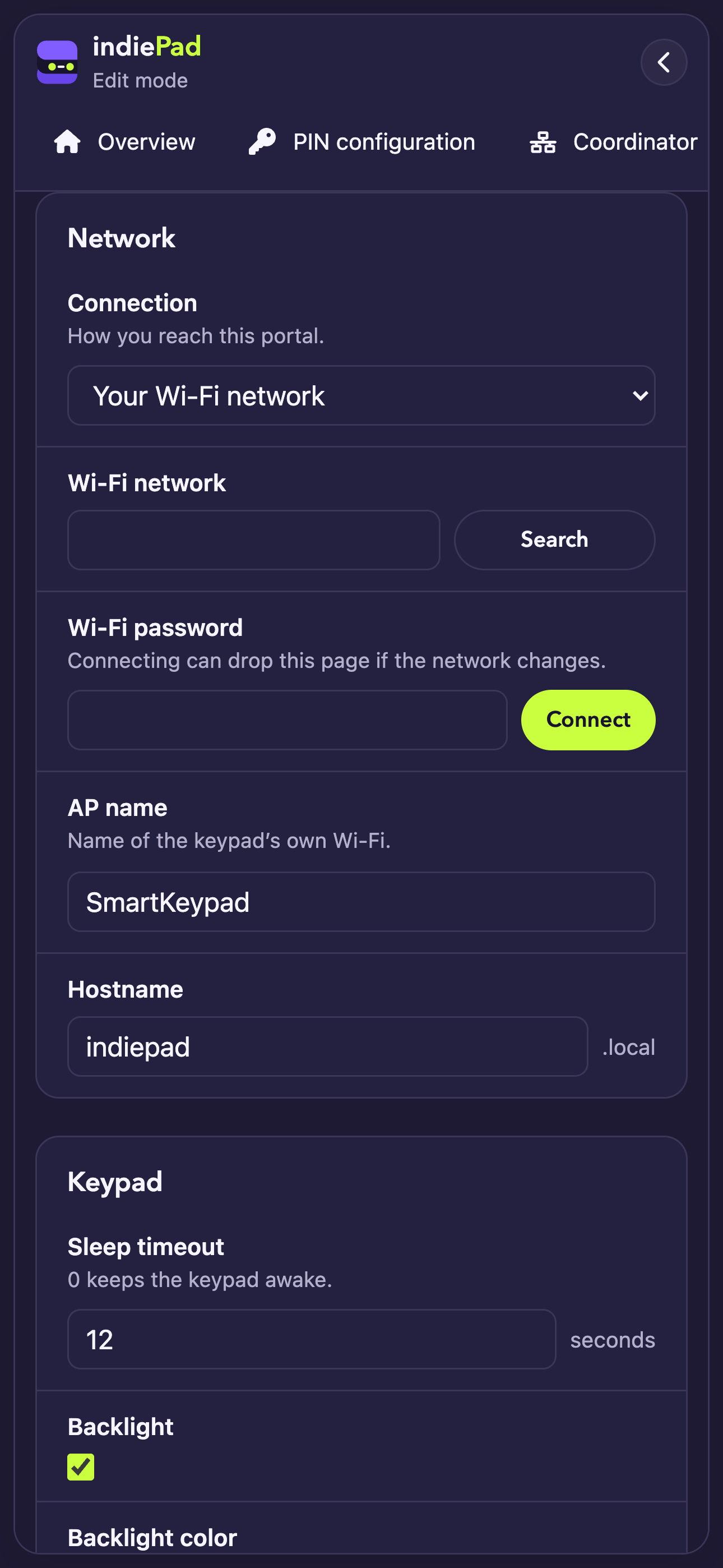
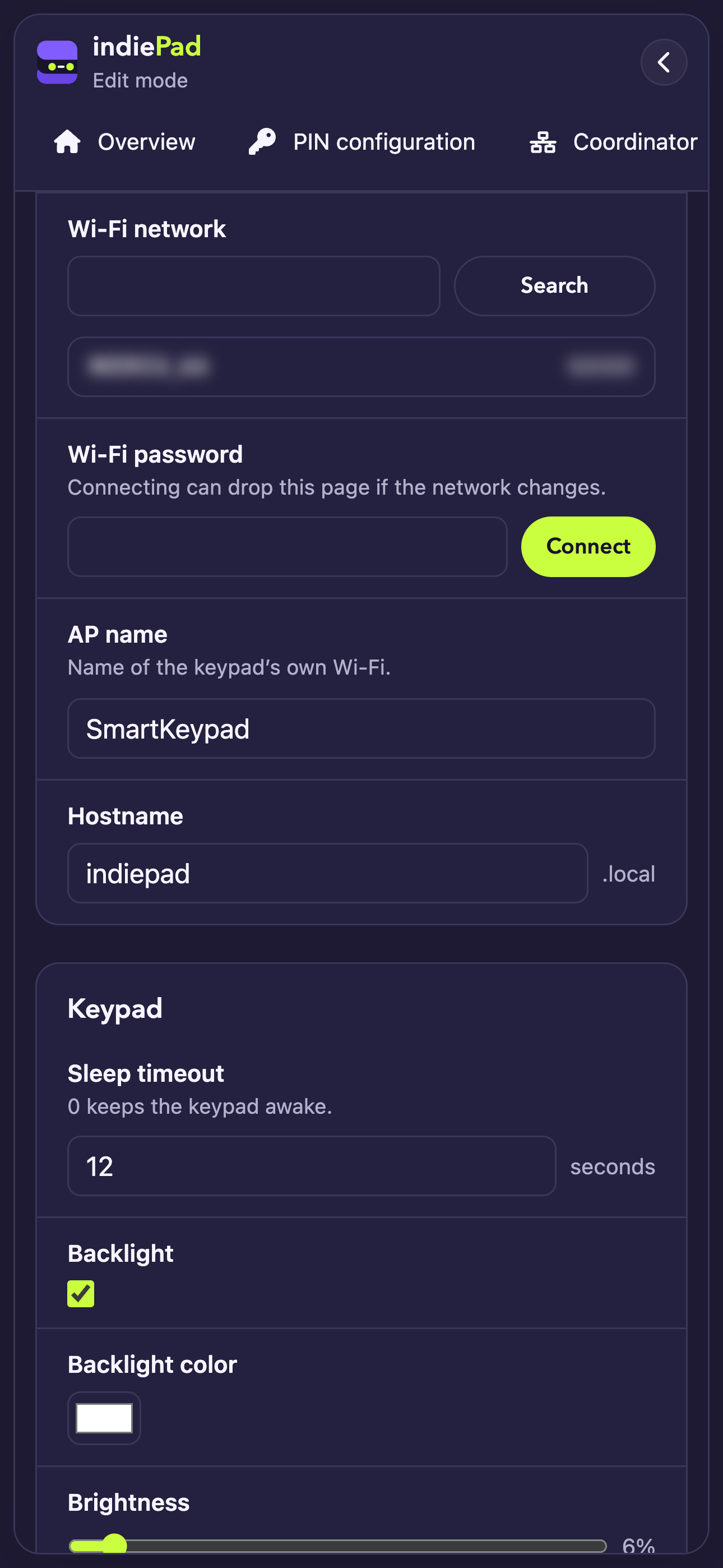
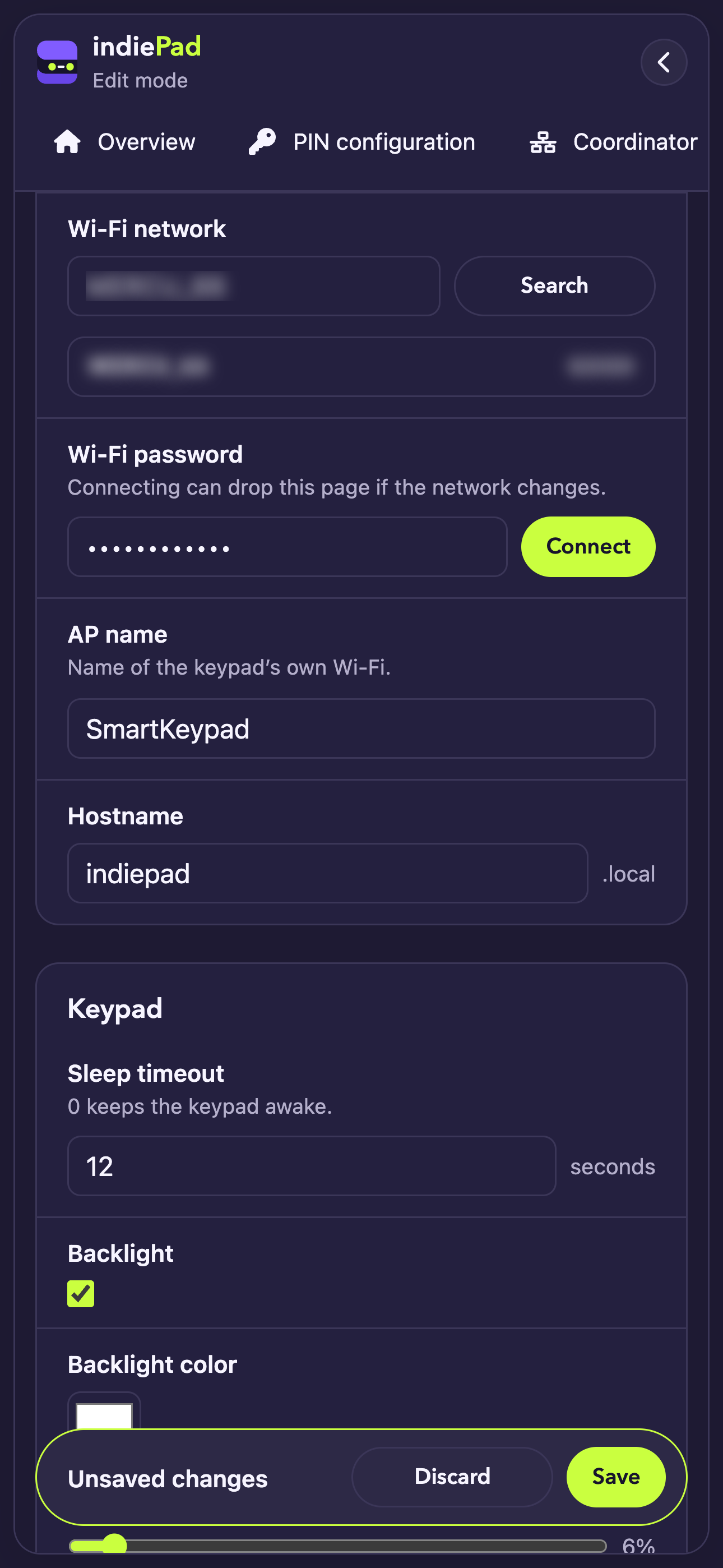
After saving, the keypad joins your Wi-Fi. The portal is then reachable at:
- http://indiepad.local/ (mDNS - macOS/iOS/Windows-with-Bonjour), or
- the IP address your router assigned it (see Overview > Network Status, or check your router's client list).
The dashboard keeps the portal awake while a browser is actively using it.
¶ Dashboard
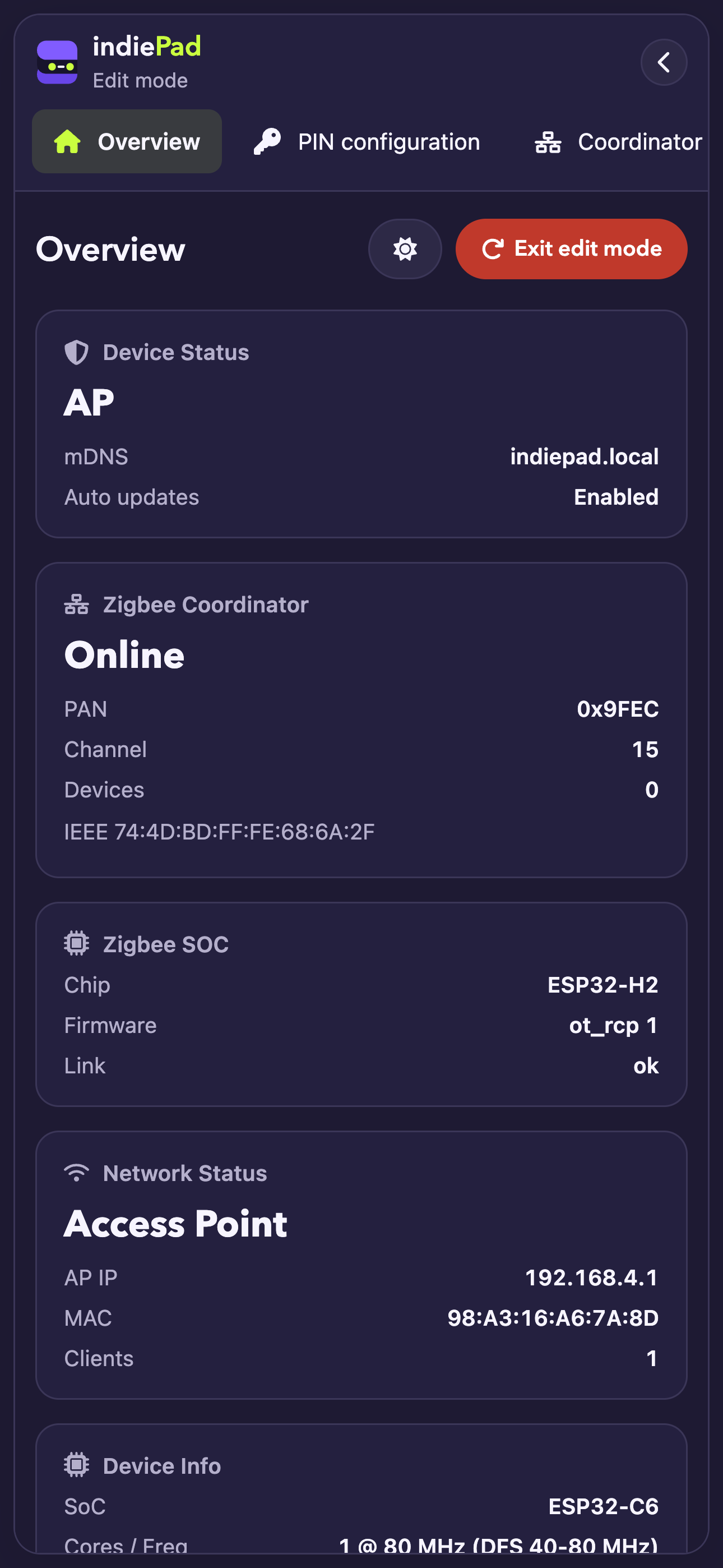
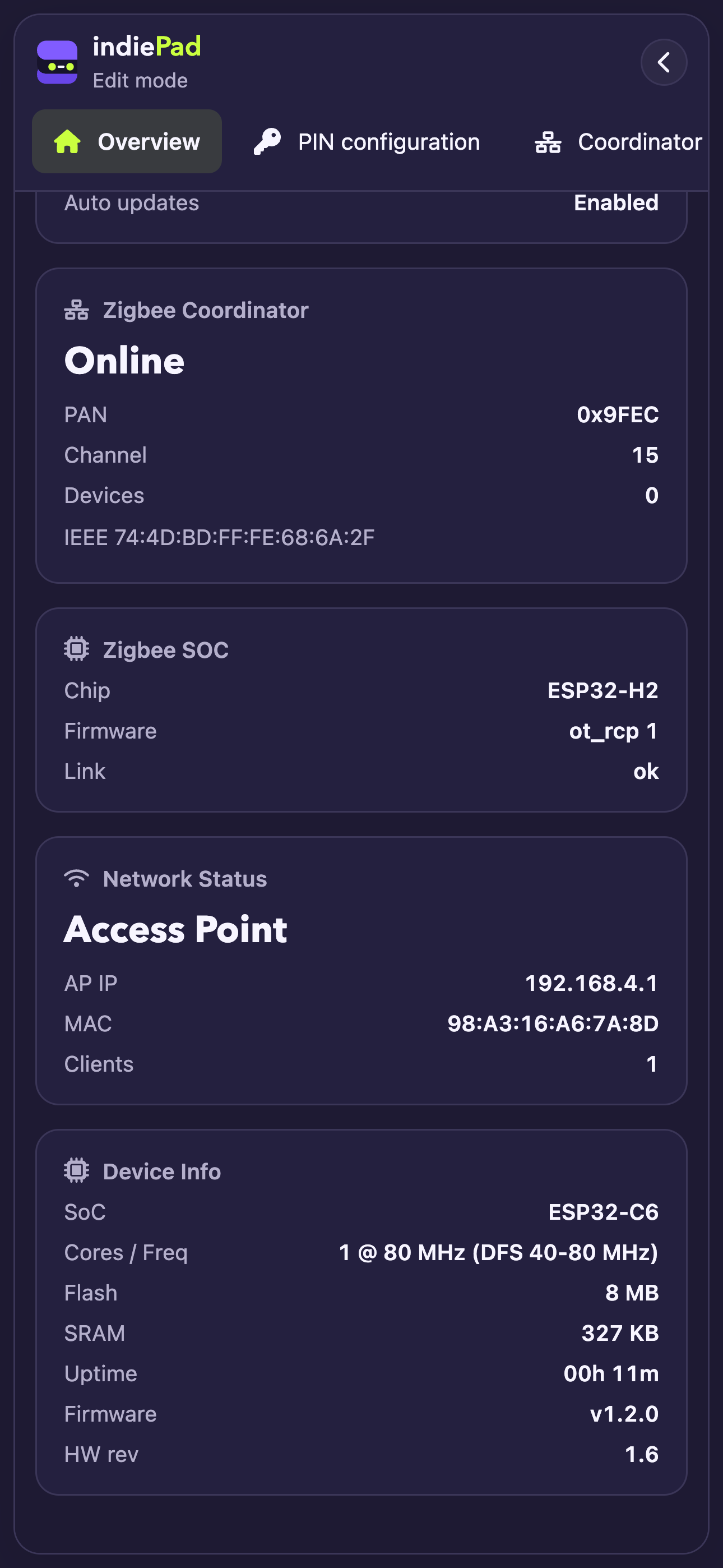
The portal doubles as the keypad's dashboard. After logging in with the master PIN you get:
Overview shows device, Zigbee and network status at a glance. The tabs along the top lead to PIN configuration, Coordinator (coordinator mode), Automations, Settings and Firmware.
¶ Settings
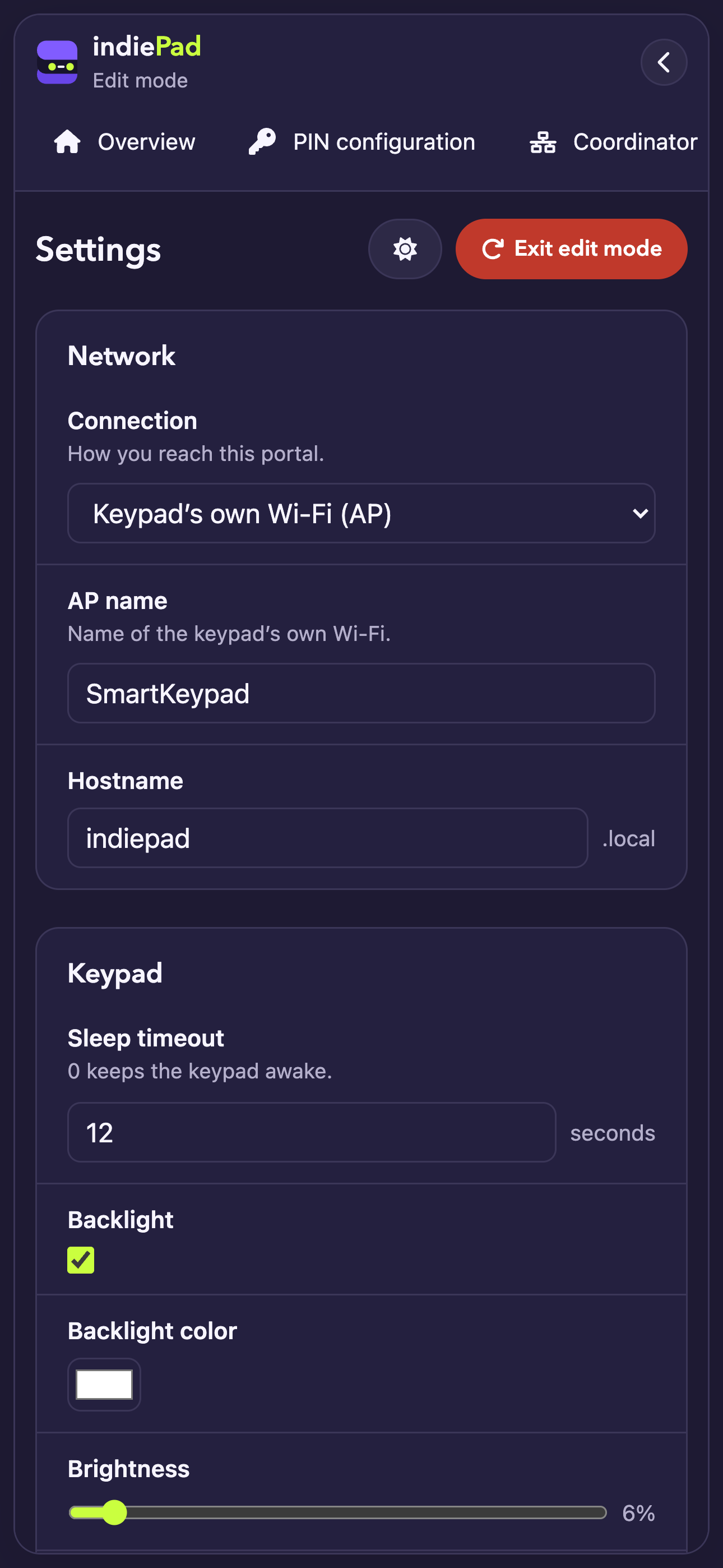
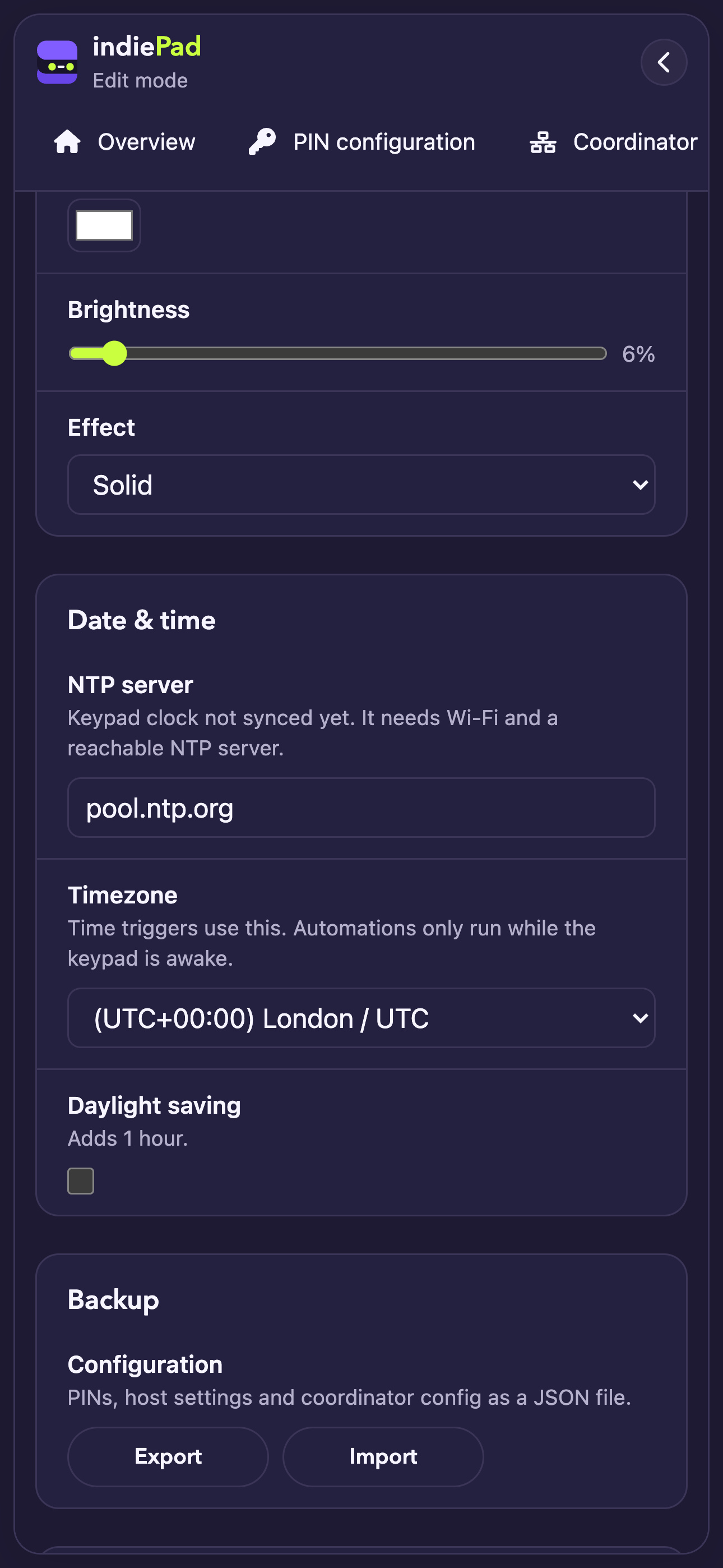
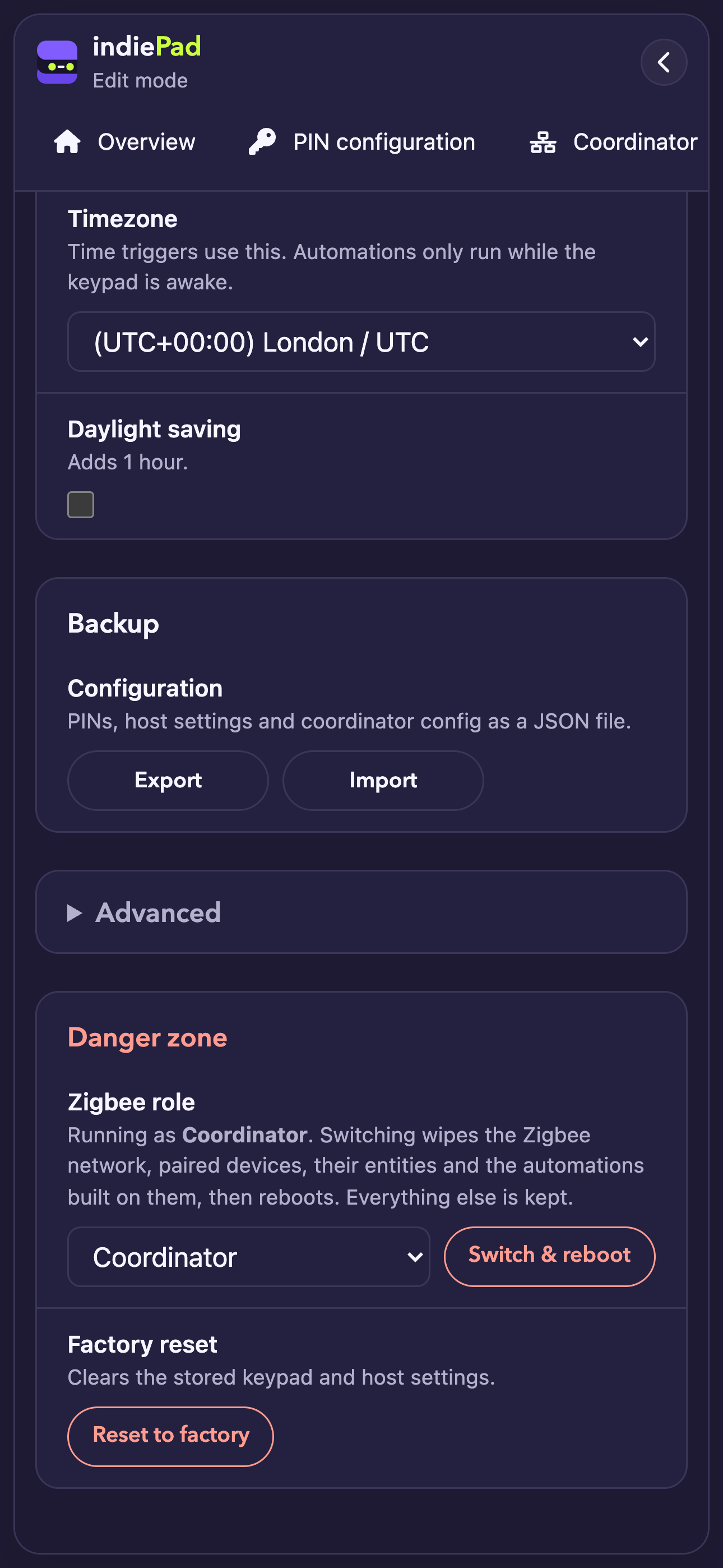
Settings holds everything about the keypad itself:
- Network - connection type (keypad's own AP or your Wi-Fi), AP name, hostname
- Keypad - sleep timeout, backlight on/off, color, brightness and effect
- Date & time - NTP server, timezone, daylight saving (needed for time automations)
- Backup - Export / Import the whole config (PINs, settings, coordinator) as JSON
- Advanced - less common options (collapsed by default)
- Danger zone - Zigbee role (switch mode) and factory reset
Changes show an Unsaved changes bar at the bottom; nothing applies until you press Save.
¶ Firmware
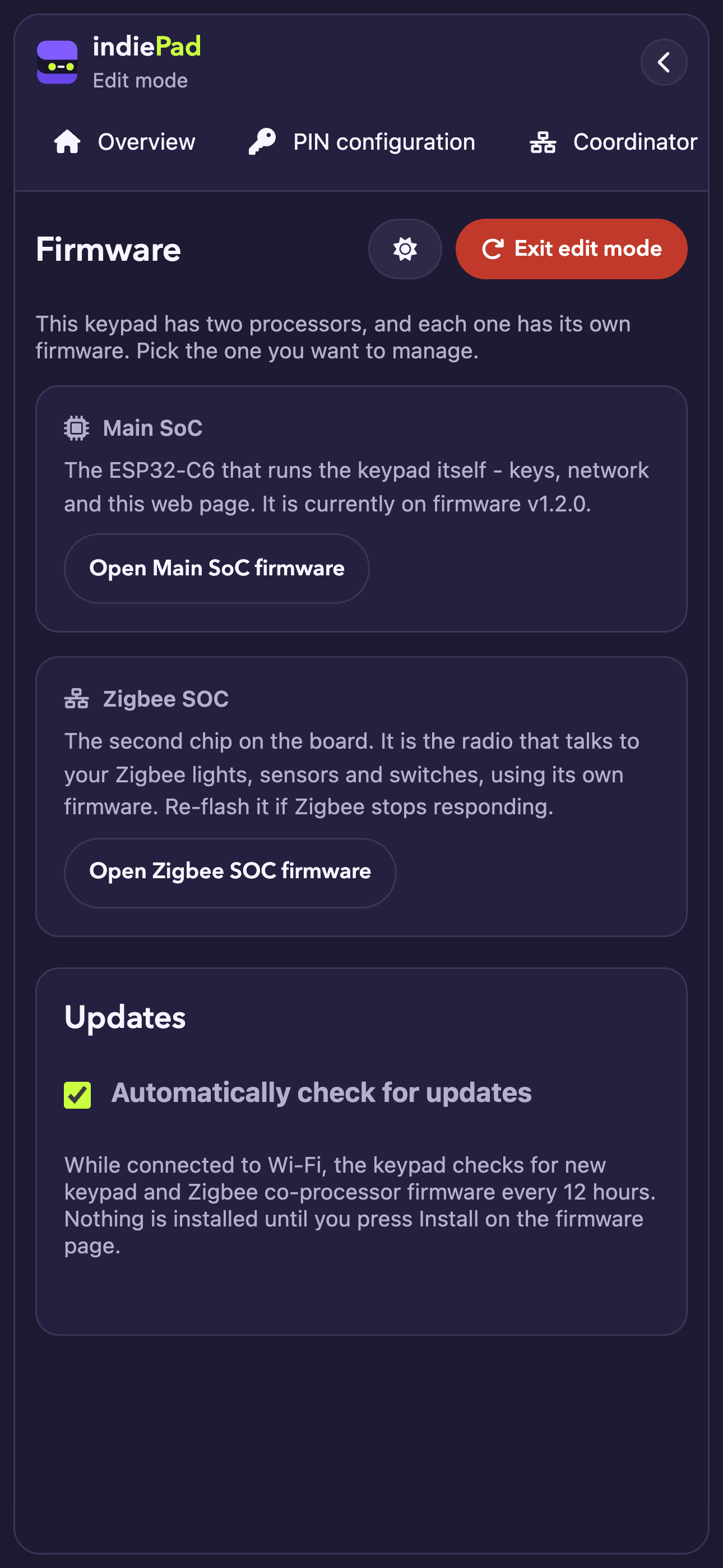
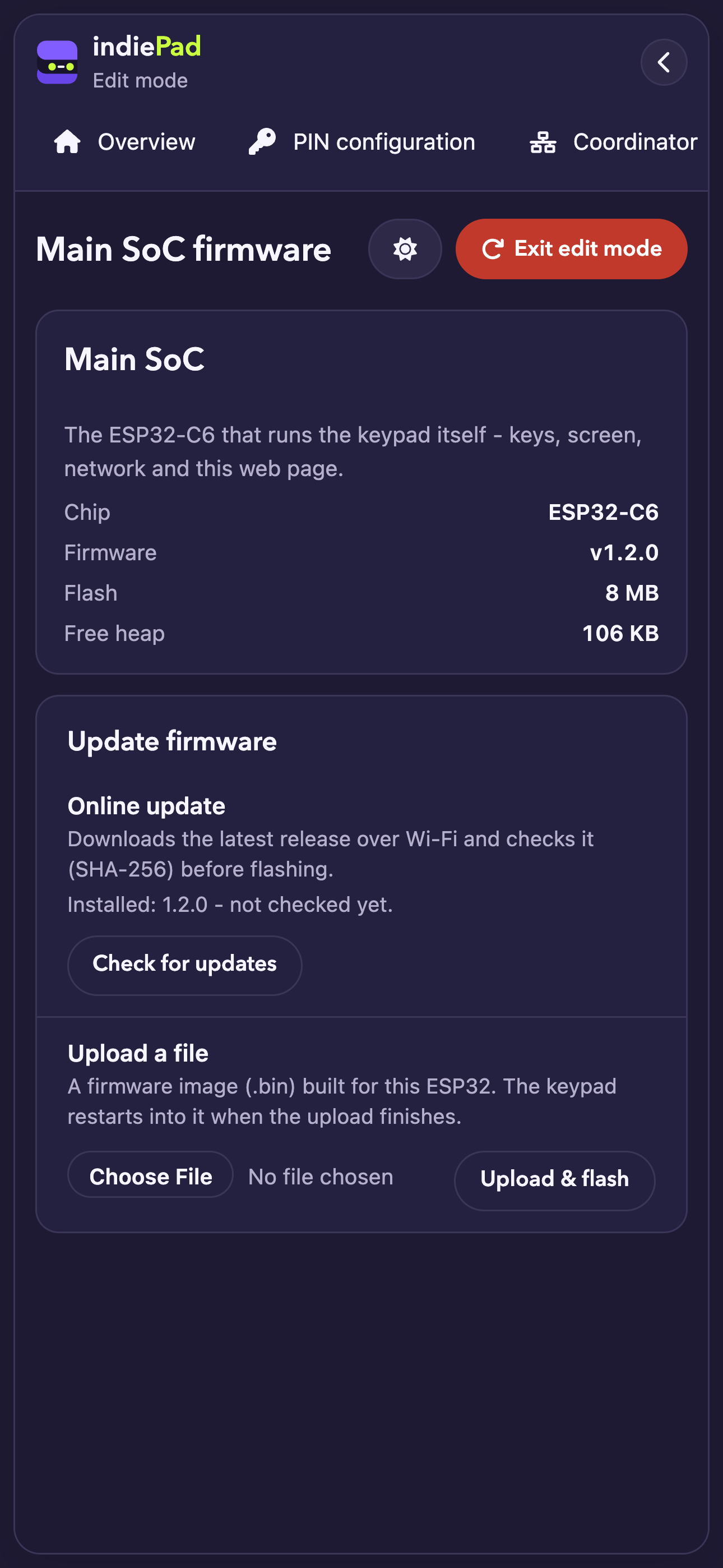
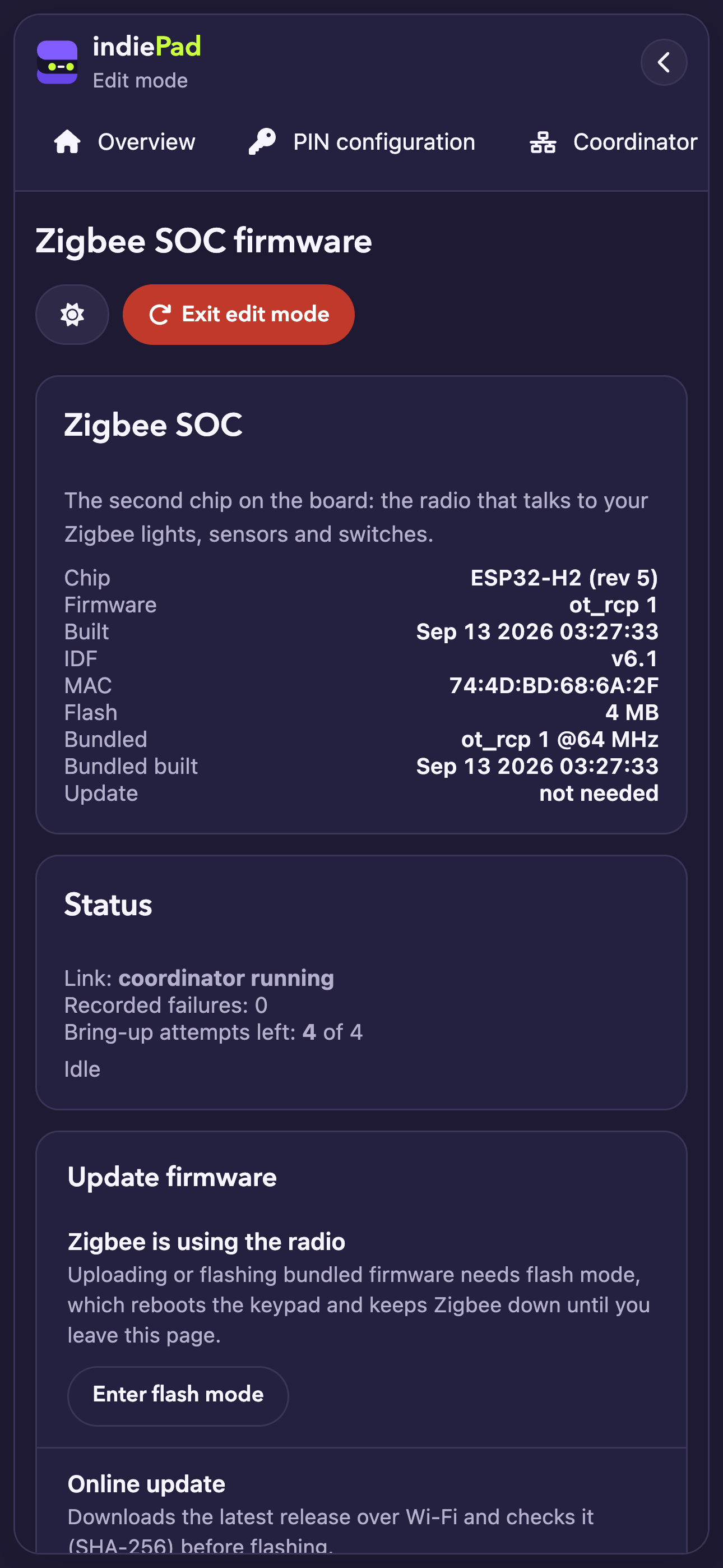
The keypad has two processors, each with its own firmware page. Main SoC (ESP32-C6) runs the keypad, the network and this portal. Zigbee SOC (ESP32-H2) is the radio co-processor.
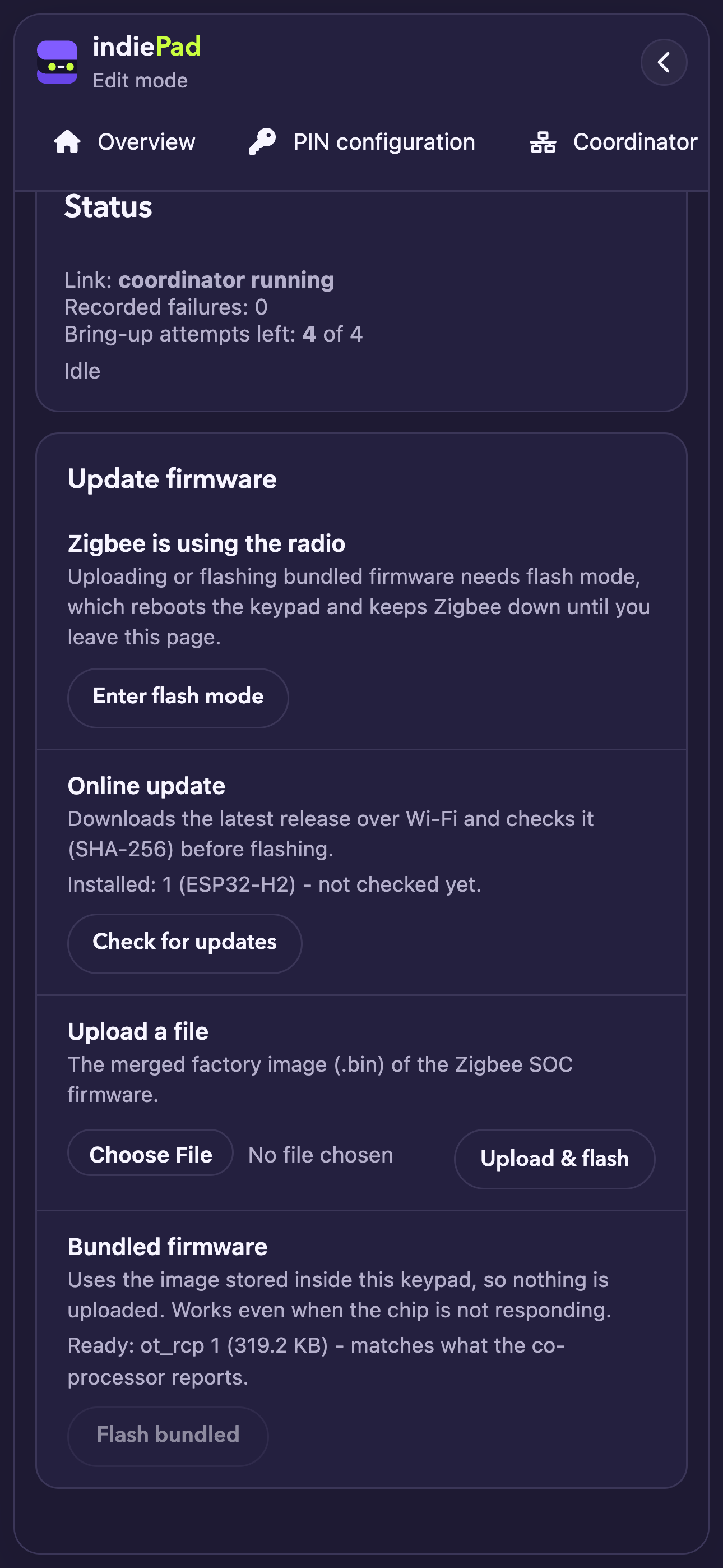
Each page can Check for updates (downloads over Wi-Fi and verifies the SHA-256) or Upload a file (.bin). The Zigbee page can also re-flash the bundled image stored in the keypad - use that if Zigbee stops responding. With Automatically check for updates on, the keypad looks for new firmware every 12 hours while on Wi-Fi; nothing installs until you press Install.
Flashing the Zigbee SOC needs flash mode, which reboots the keypad and keeps Zigbee down until you leave the page.
¶ Switching modes
Switching modes later wipes the Zigbee network, paired devices and automations (PINs, Wi-Fi and other settings are kept). It is done from Settings > Zigbee Mode: