¶ Automations
In coordinator mode the keypad can run automations itself - no hub, no cloud. Rules react to PINs, control keys, sensors and time, and drive the Zigbee devices paired to the keypad.
Build them in the dashboard's Automations tab. Every rule has two views of the same thing: the form builder (dropdowns) and the code view (plain text). They stay in sync - build with the form and fine-tune as text, or write the text and check it in the form.
Using Home Assistant mode? Build your automations in Home Assistant instead. The keypad exposes entities there (Keypad State, Active Pin Number, control keys...) - see the User Guide. This page is for the keypad's own on-device automations (coordinator mode).
¶ Walkthrough: breathe red when it's too hot
This example makes the keypad's backlight breathe red when a temperature sensor goes above 30 °C, and go back to a calm white once it cools down. It uses an eWeLink SNZB-02P temperature/humidity sensor paired to the keypad, but any temperature sensor works.
You need two rules: one to start the alert and one to clear it. A rule only fires on its trigger, so nothing turns the red off unless you tell it to.
¶ 1. Start a new rule
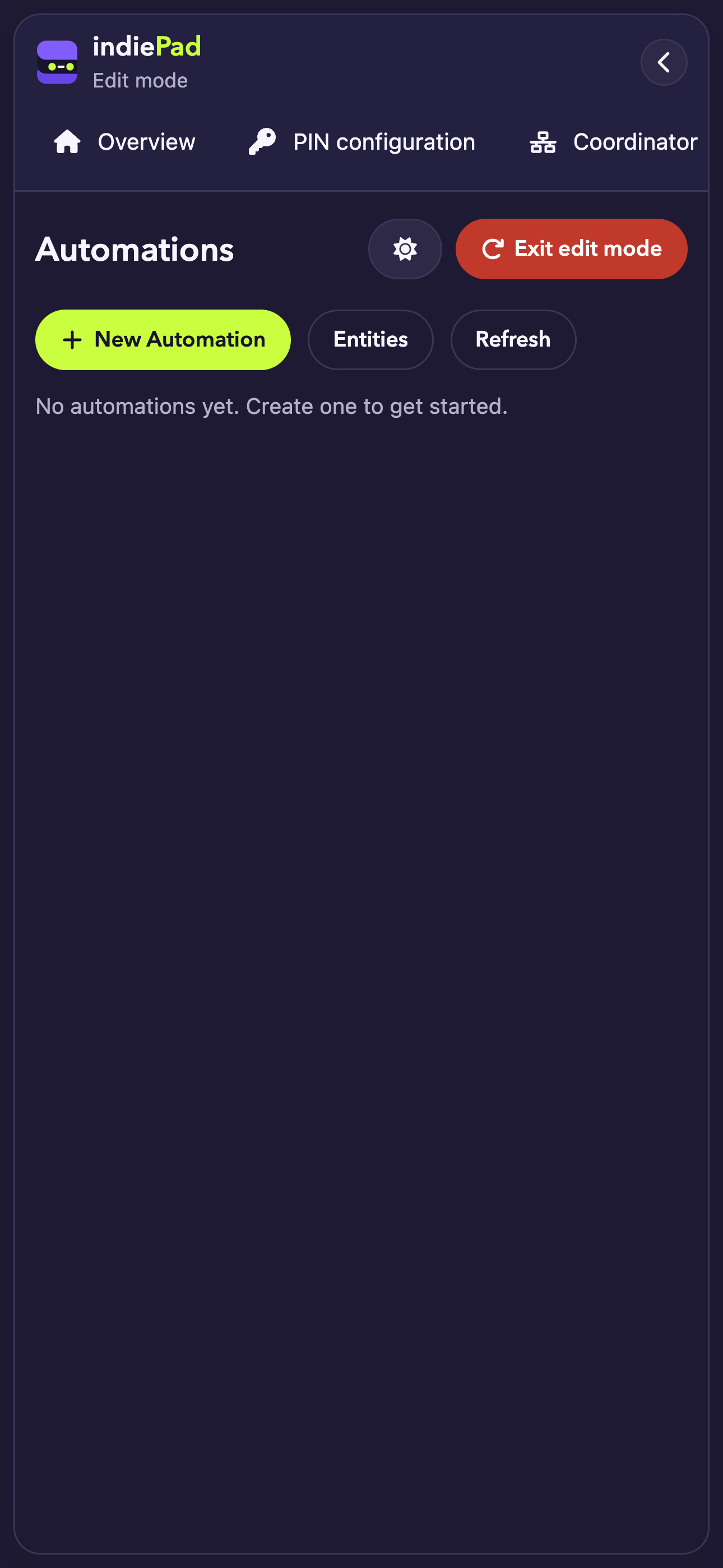
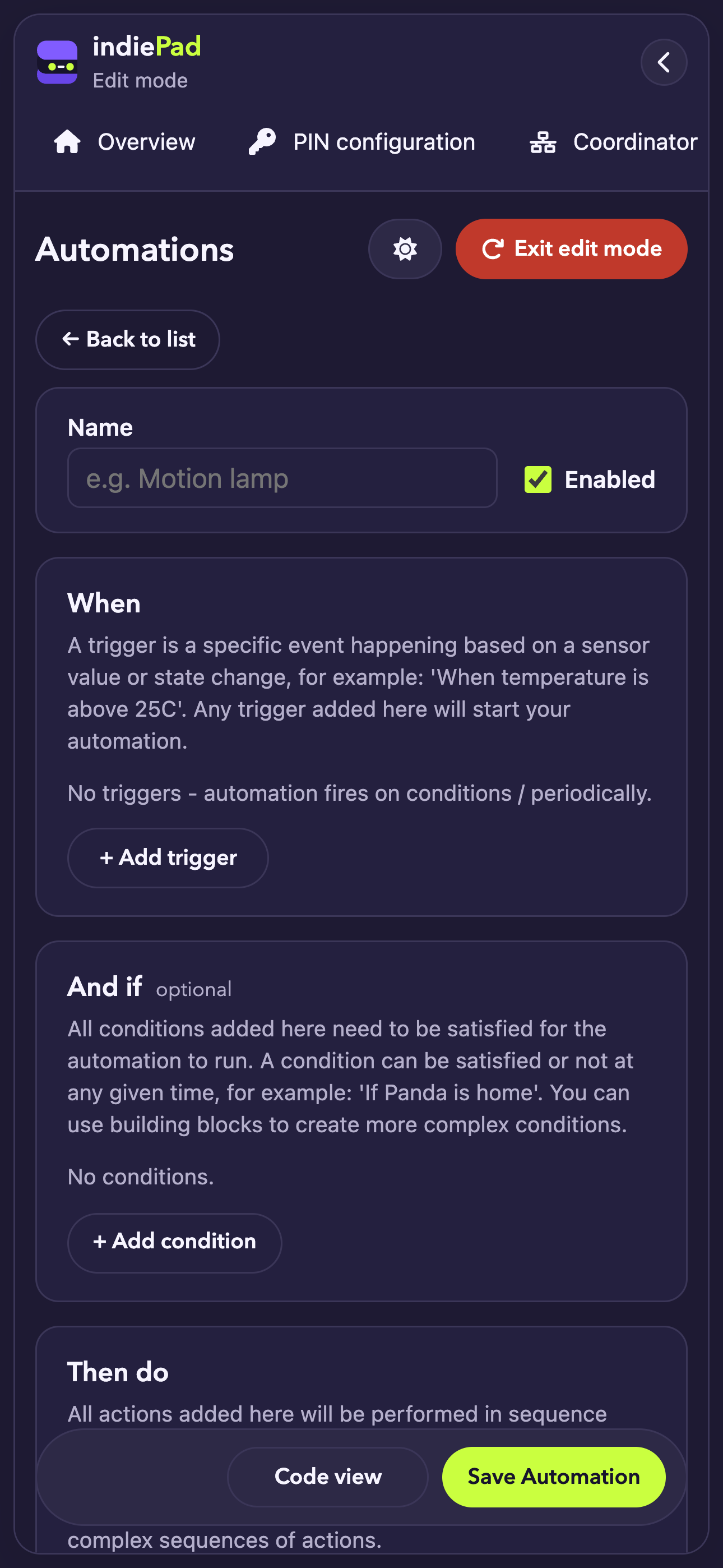
Open Automations and tap New Automation. The editor has three sections: When (triggers), And if (optional conditions) and Then do (actions).
¶ 2. Name it and add the trigger
- Type a Name, e.g.
Too hot. Leave Enabled ticked. - Under When, tap + Add trigger and keep Entity state.
- Pick the sensor's temperature entity (the dropdown shows its current reading).
- Choose > value and type
30.
The rule now fires every time a new reading arrives that is above 30.
¶ 3. Add the backlight action
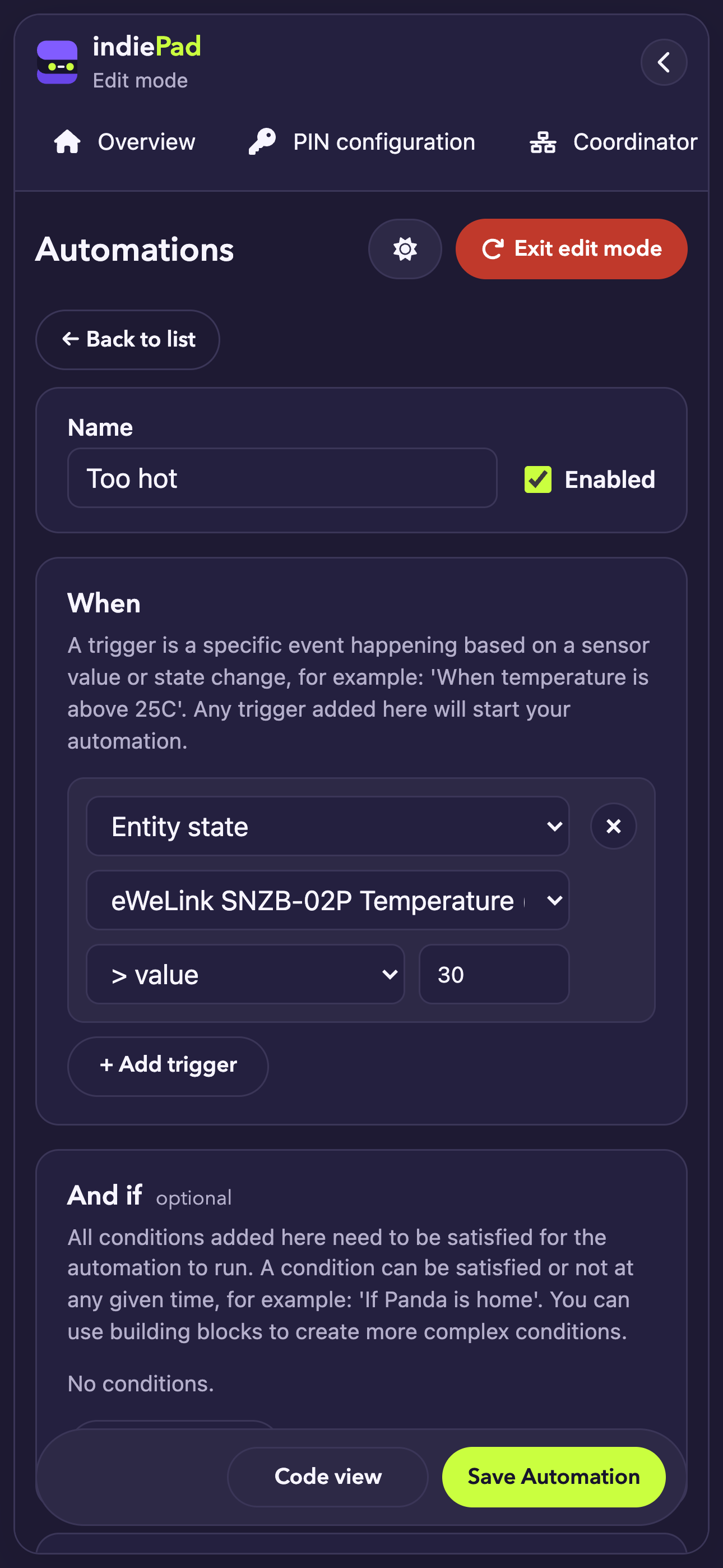
Under Then do, tap + Add action and choose Keypad backlight, then:
| Field | Value | Why |
|---|---|---|
| Mode | Set effect | Flash blinks once, Turn off switches the backlight off |
| Effect | Breathe | fades in and out; also Solid, Spin, Rainbow, Diagonal swap |
| Speed | Slow | leave on Current speed to keep the speed set in Settings |
| Brightness | 100 | percent; leave empty to keep the current brightness |
| Color | tick color, pick red | without the tick the effect uses the current color |
¶ 4. Check it in Code view
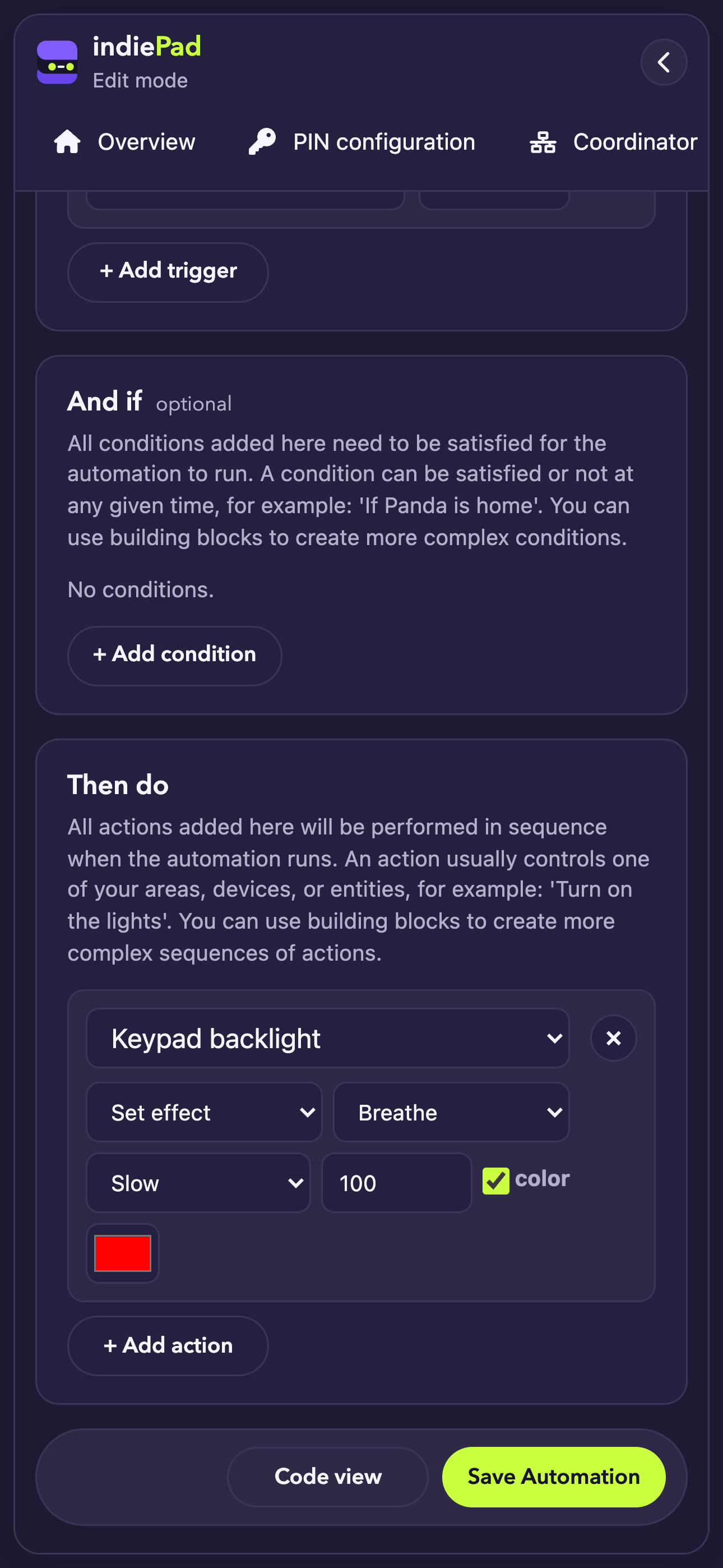
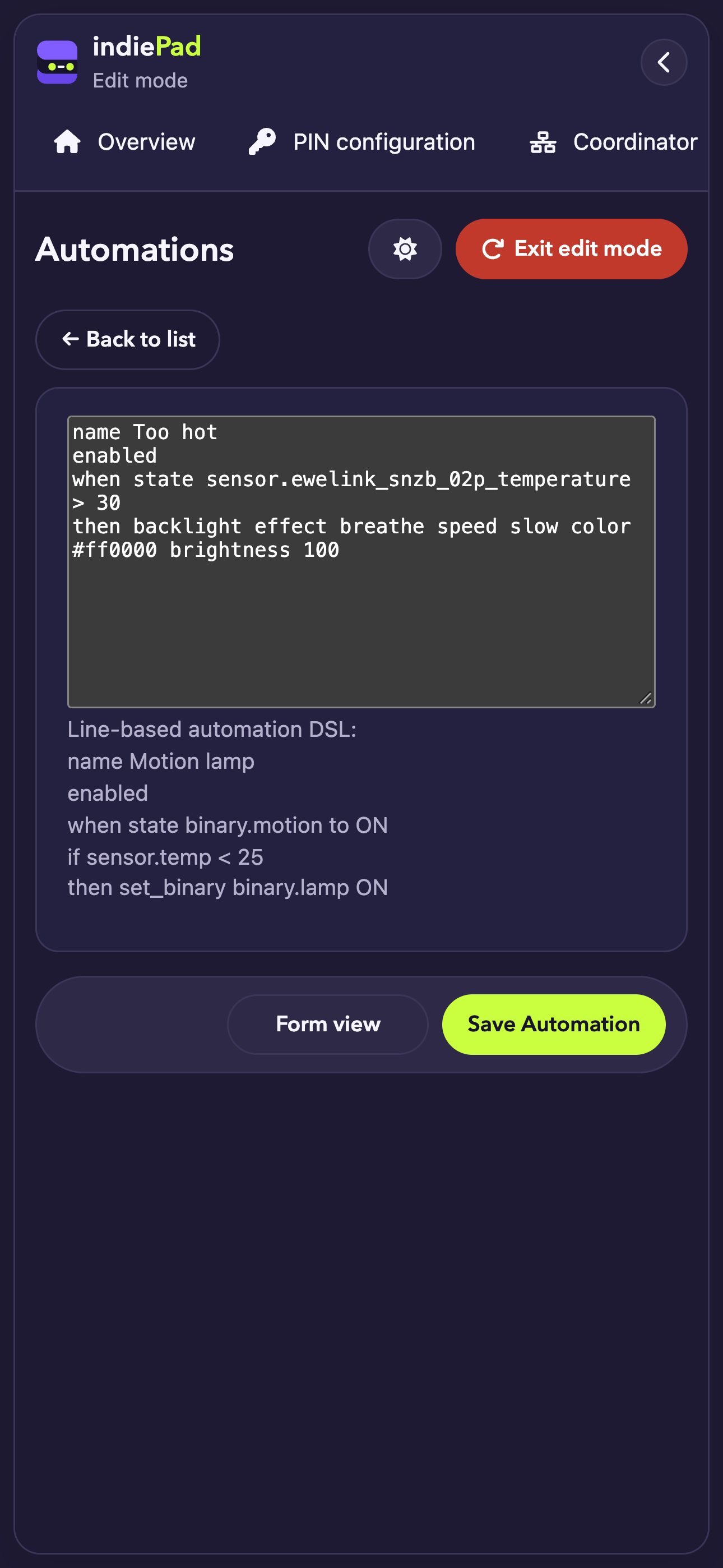
Tap Code view to see the same rule as text. This is exactly what gets saved, and you can edit it here directly:
name Too hot
enabled
when state sensor.ewelink_snzb_02p_temperature > 30
then backlight effect breathe speed slow color #ff0000 brightness 100
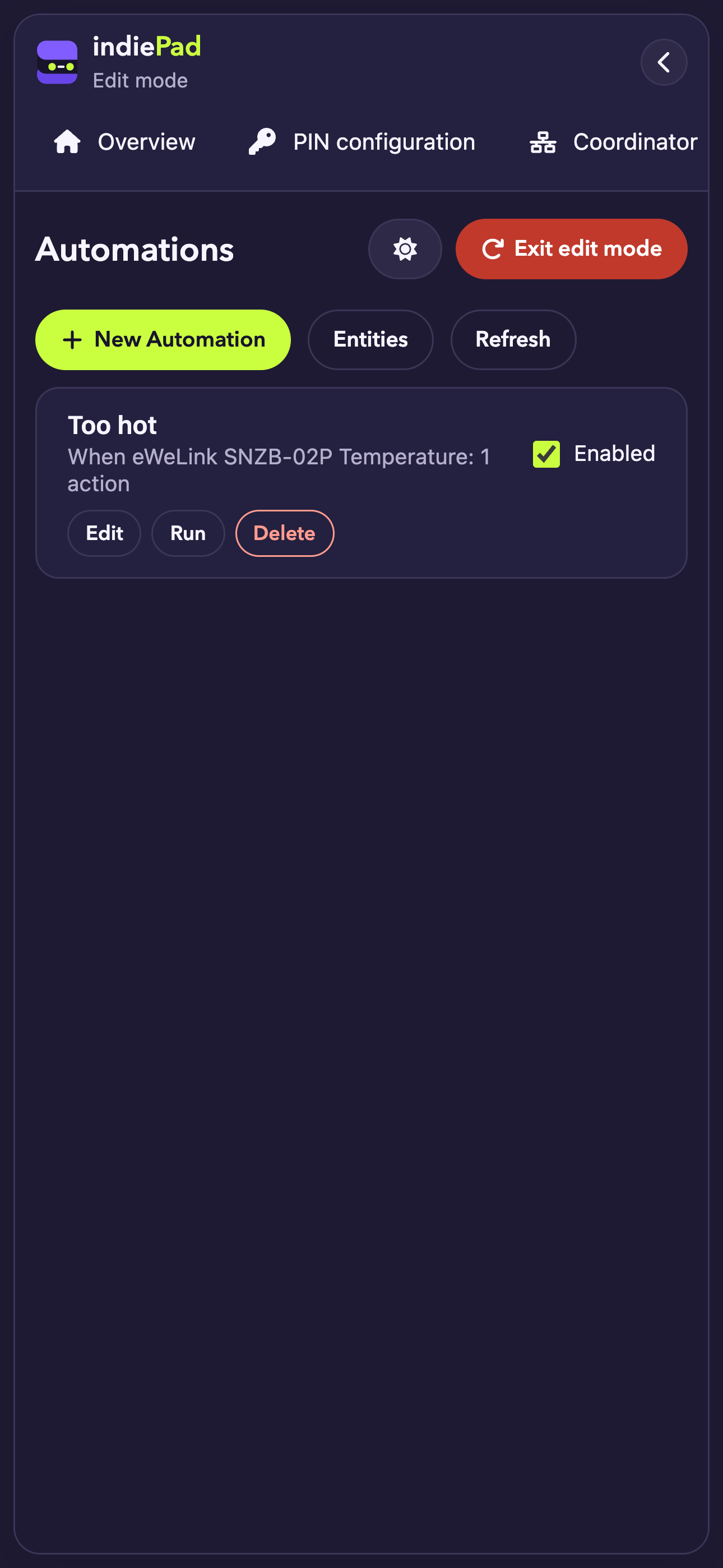
Tap Save Automation. The rule appears in the list with Edit, Run (fire the actions now, handy for testing the look) and Delete.
¶ 5. Add the "cooled down" rule in code
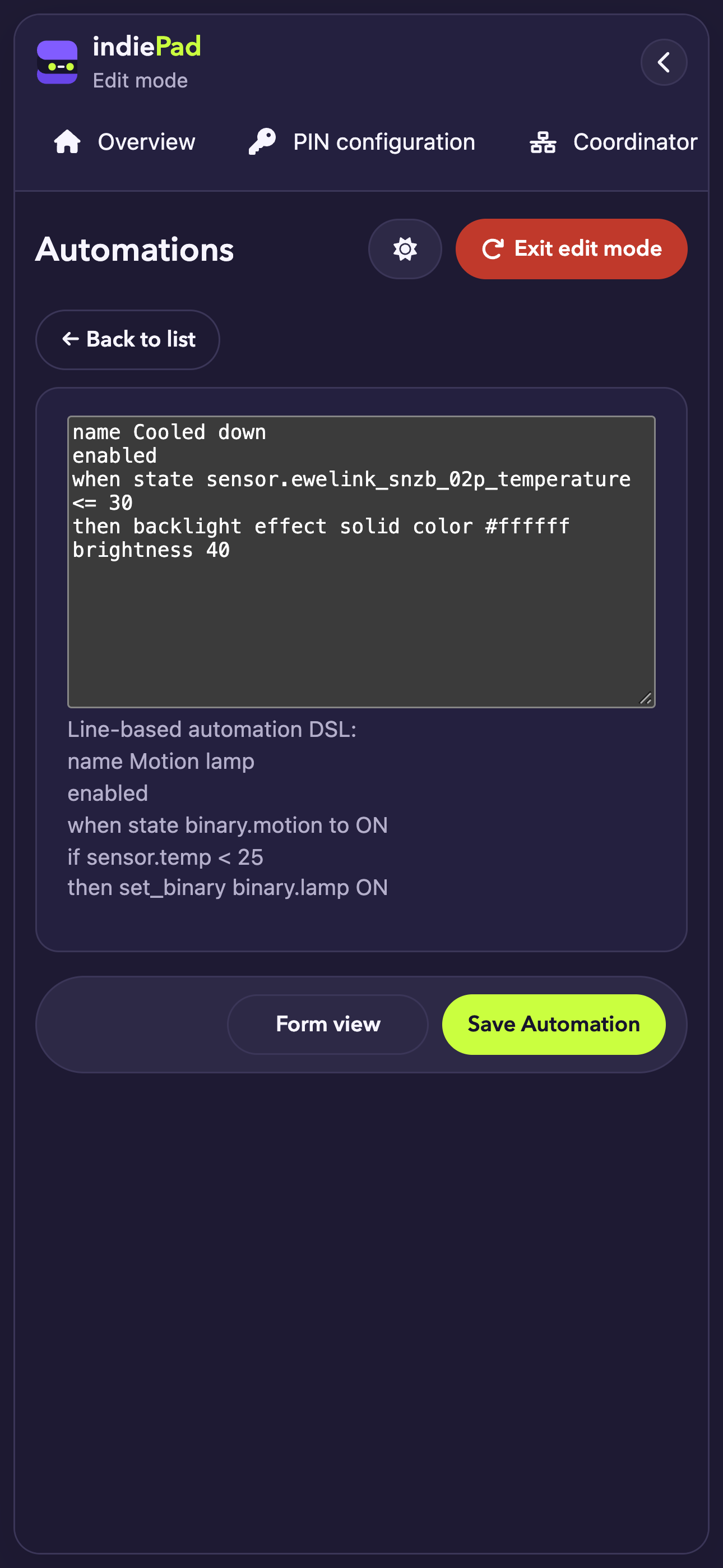
You don't have to use the form. Tap New Automation, then Code view, and type or paste the rule:
name Cooled down
enabled
when state sensor.ewelink_snzb_02p_temperature <= 30
then backlight effect solid color #ffffff brightness 40
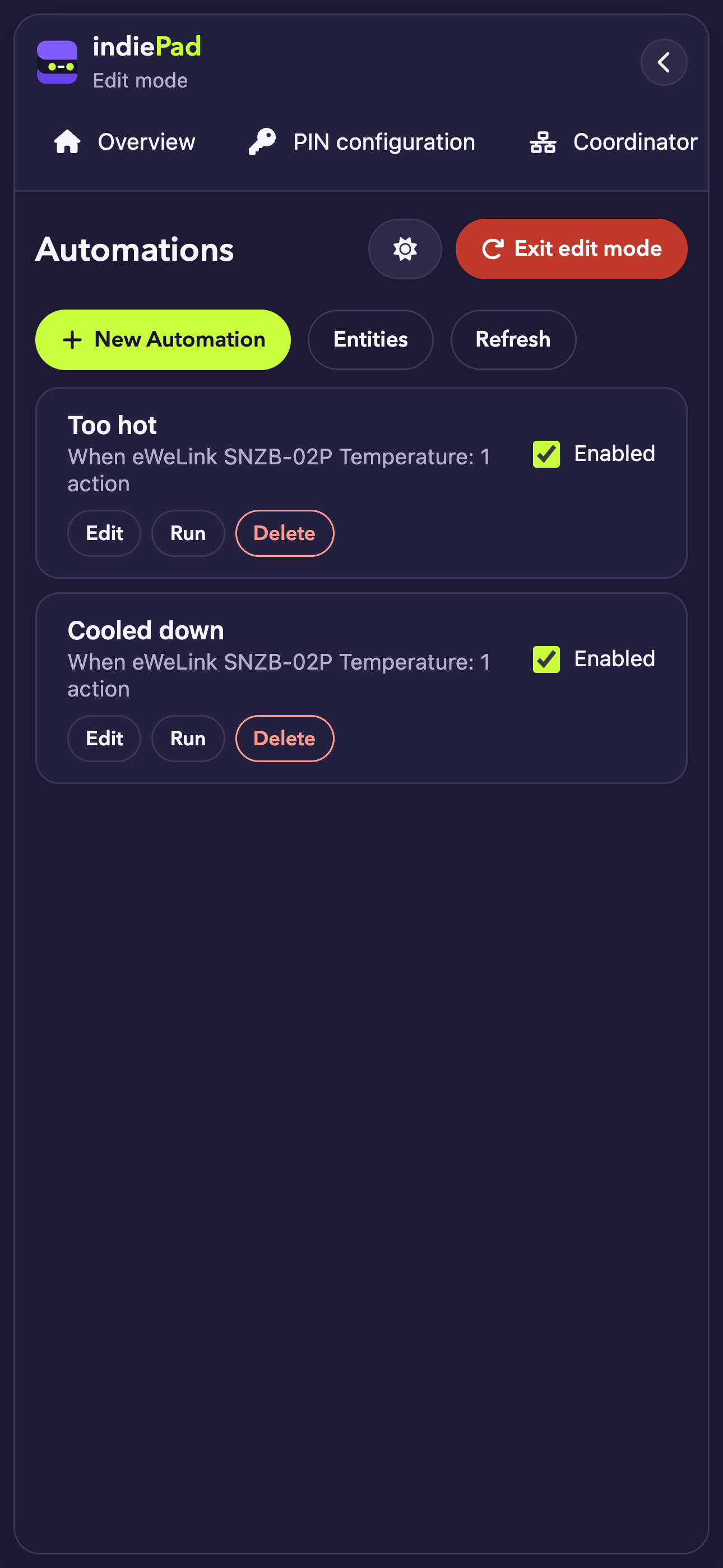
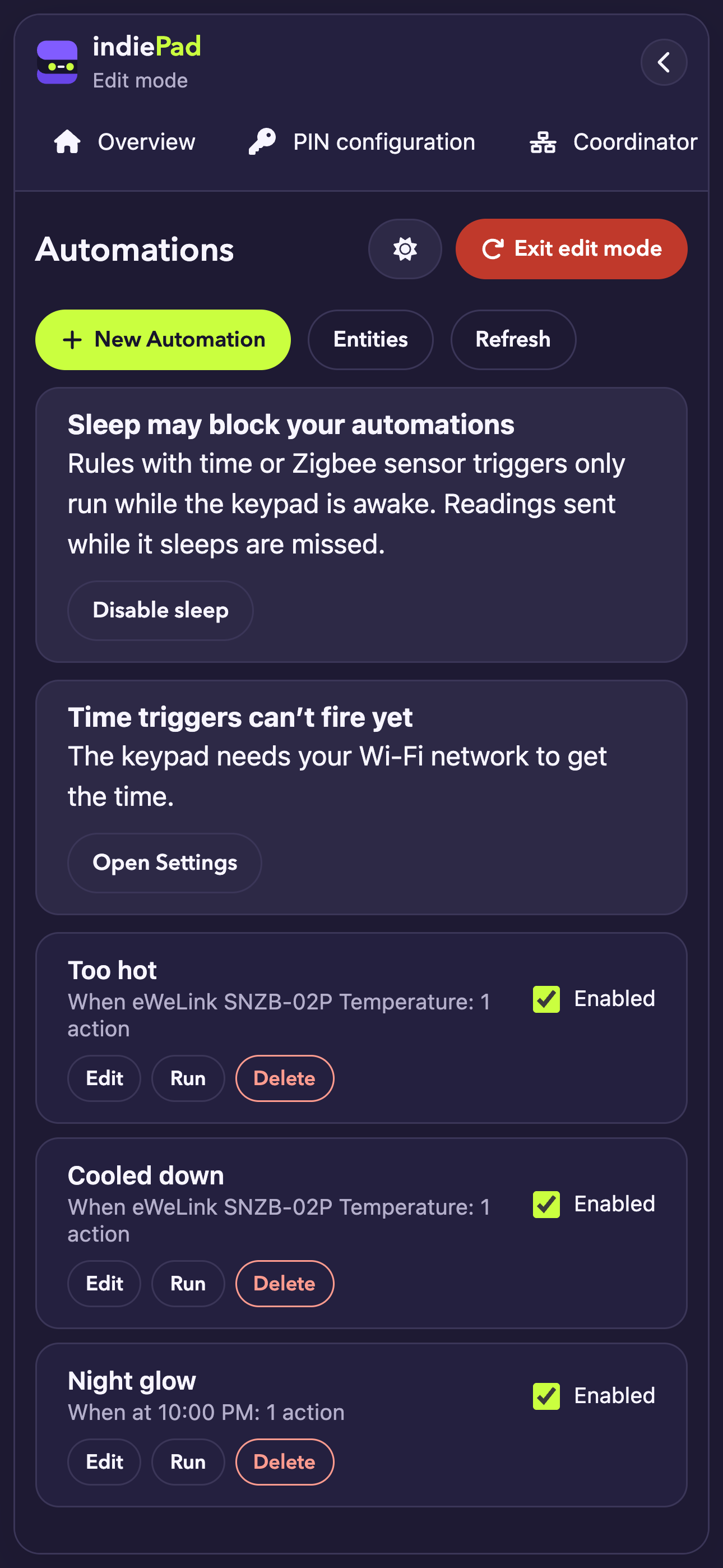
Save it. Both rules are now in the list:
¶ How it behaves
- Each new temperature reading is checked against both rules. Above 30 the backlight breathes red; at 30 or below it goes back to solid white at 40%.
- The sensor reports on its own schedule, so the switch happens on its next report, not the instant the room crosses 30 °C.
- To test without heating the room, temporarily change
30to a value just below the current reading, or tap Run on a rule. - Rules only run while the keypad is awake. If you rely on sensor alerts, raise or disable the Sleep timeout in Settings (see Warnings).
¶ Walkthrough: a soft night glow at 22:00
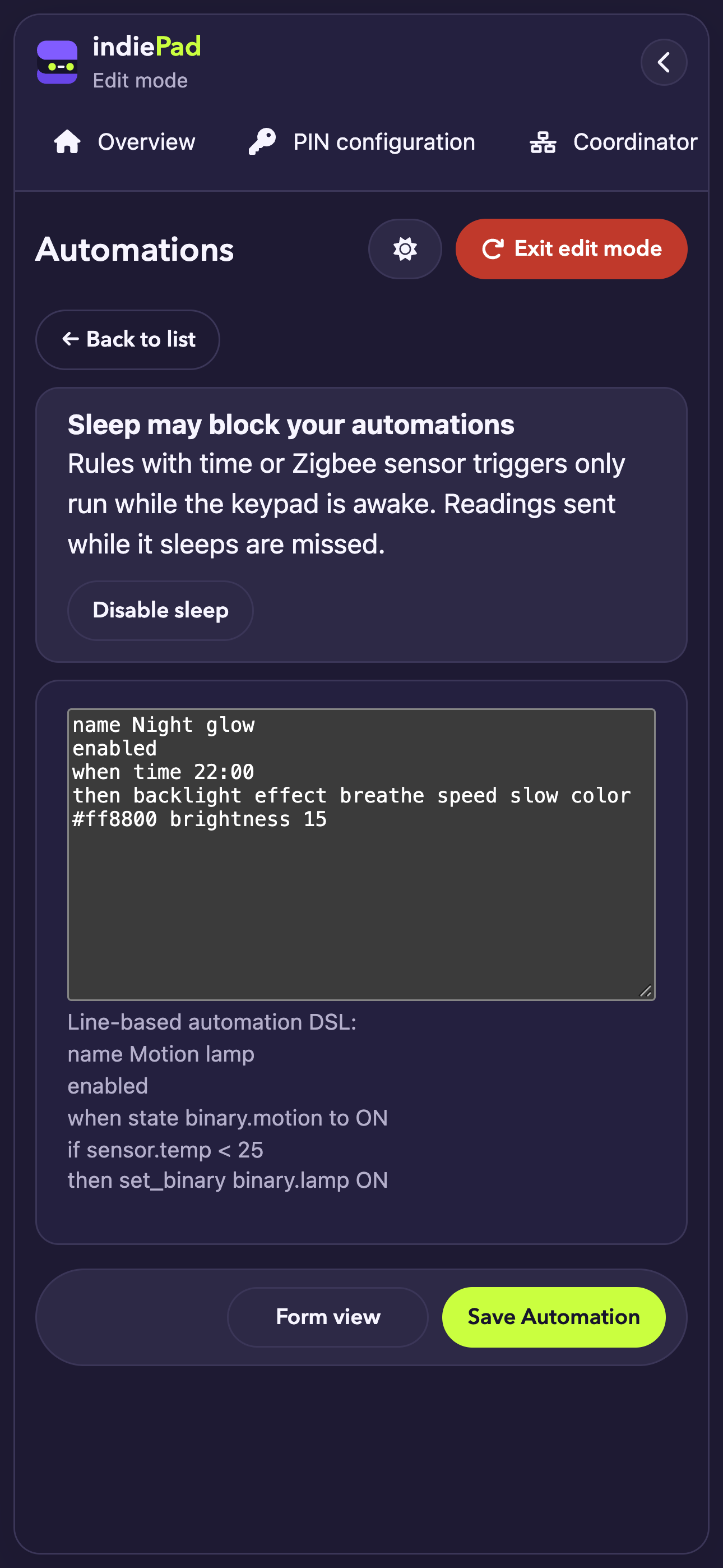
A time rule runs once a day at a set time. This one switches the backlight to a dim, slow orange breathe at 22:00:
name Night glow
enabled
when time 22:00
then backlight effect breathe speed slow color #ff8800 brightness 15
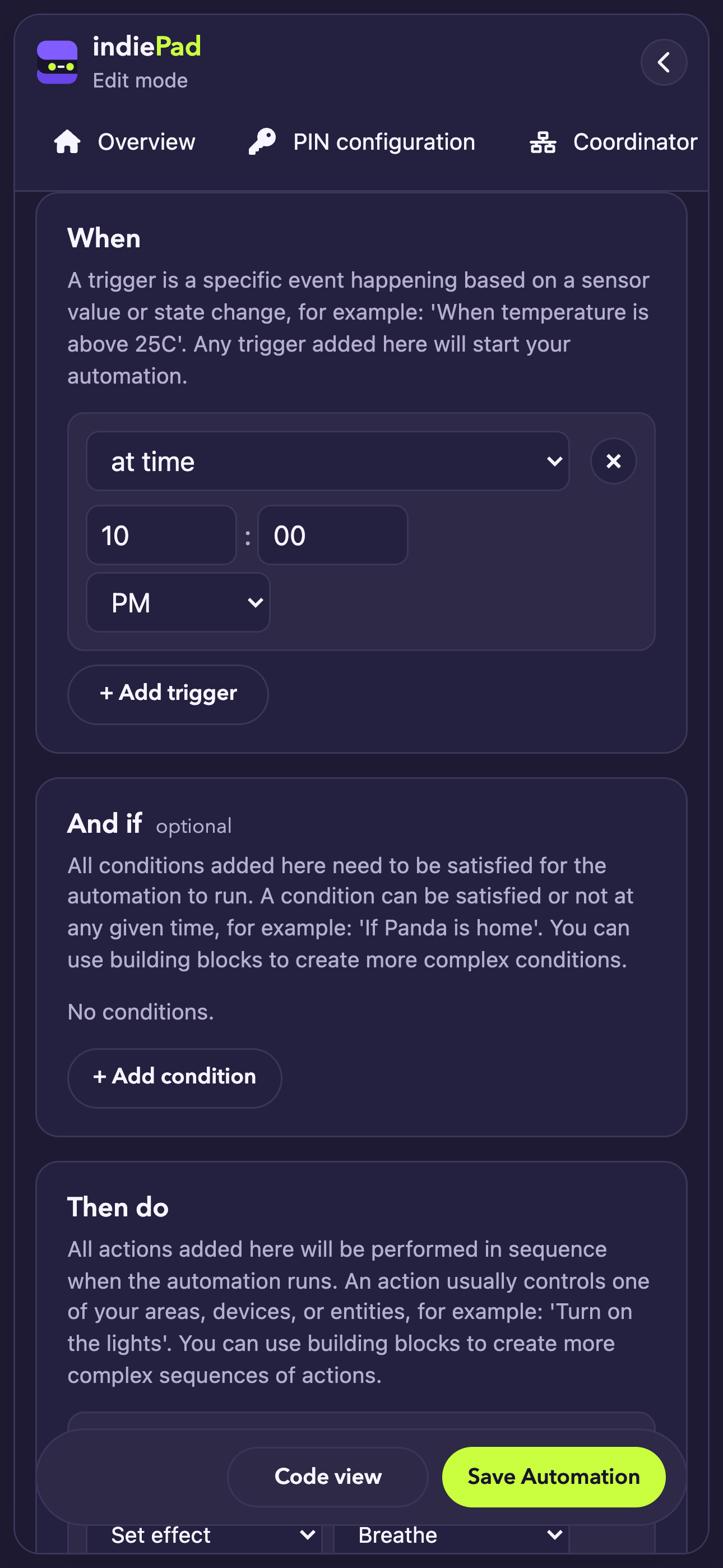
Write it in Code view as above, or in the form: + Add trigger > at time, then set the hour, minutes and AM/PM. Need seconds? Add them in Code view (22:00:30); the form keeps them. Switching between the two views keeps them in sync.
After saving, the list shows two warnings: one because sleep is on, and one because the keypad has no clock yet. A time rule cannot fire until both are sorted. See Time triggers need the internet and Warnings.
¶ Rule structure
A rule is a set of lines:
nameandenabled/disabled- what it is called and whether it runs.- one or more triggers (
when) - the rule runs when any of them fires. - zero or more conditions (
if) - all must be true when the rule runs. - one or more actions (
then) - run in order.
¶ Triggers - when
| Syntax | Fires when |
|---|---|
when state <entity> |
the entity changes |
when state <entity> <op> <value> |
it changes to a value matching =, !=, <, <=, >, >= |
when state <entity> between <lo> and <hi> |
the new value is inside the range |
when state <entity> from <a> to <b> |
the transition matches (from / to alone are also allowed) |
when pin <n> |
the PIN with switch number n is entered |
when time HH:MM[:SS] |
once a day at that time (needs the clock set) |
¶ Conditions - if
All if lines must be true when the rule runs.
| Syntax | True when |
|---|---|
if <entity> <op> <value> |
=, !=, <, <=, >, >= |
if <entity> between <lo> and <hi> |
the value is inside the range |
if <entity> changed |
the value changed on this run |
if <entity> changed from <a> to <b> |
the transition matches |
if time <op> HH:MM[:SS] |
comparison against the current time of day |
if time between HH:MM[:SS] and HH:MM[:SS] |
time of day in range - an end time earlier than the start (e.g. 22:00 to 06:00) means the window runs overnight |
¶ Actions - then
Actions run in order.
| Syntax | Does |
|---|---|
then set_binary <entity> <on/off> |
turn a switch/binary on or off |
then toggle_binary <entity> |
toggle it |
then set_analog <entity> <value> |
set a number/analog value |
then offset_analog <entity> <delta> |
add/subtract (e.g. -10) |
then cover_open <entity> |
open a cover |
then cover_close <entity> |
close a cover |
then cover_toggle <entity> |
toggle a cover |
then cover_position <entity> <0-100> |
move a cover to a position |
then set_color <entity> #rrggbb [brightness%] |
set a color light (optional brightness) |
then backlight effect <solid/breathe/spin/rainbow/diagonal> [speed slow/medium/fast] [color #rrggbb] [brightness 0-100] |
set the keypad's own backlight effect |
then backlight flash [color #rrggbb] |
flash the keypad backlight |
then backlight off |
turn the keypad backlight off |
¶ Entities
Ids are typed by prefix: binary.* (on/off), sensor.* (readings), number.* (analog/number) and cover.* (covers). The keypad itself also exposes three local entities:
| Entity | Meaning |
|---|---|
binary.armed |
the keypad is armed (read/write) |
number.last_pin |
the switch number of the last accepted PIN |
sensor.battery |
keypad battery percentage |
Use the entity dropdown in the builder - it shows name (id) - value - to copy the exact id.
¶ Time triggers need the internet
when time and if time need a real clock, and the keypad has no clock battery - it syncs the time over the network. So a time trigger needs:
- The keypad on your Wi-Fi (Settings > Connection Type = WIFI), not in AP mode. AP mode has no internet, so the clock never syncs.
- A timezone set (Settings > Date & Time). Times are local - without a timezone they are treated as UTC.
- A reachable NTP server (the default
pool.ntp.orgis fine for most people).
Until the clock has synced at least once, rules with a time trigger cannot match a time.
¶ Warnings
The Automations tab shows a banner at the top when something would stop your rules working:
| Banner | Shown when | Fix |
|---|---|---|
| Sleep may block your automations | Sleep is enabled and a rule has a time trigger or a trigger on a Zigbee device (sensor, switch...) | Press Disable sleep, or set a long timeout in Settings |
| Time triggers can't fire yet | A rule uses when time / if time, but the clock is not synced - usually no Wi-Fi (AP mode), no timezone, or the keypad is asleep |
Press Open Settings and set Wi-Fi + timezone |
Deep sleep stops automations. If your rules rely on time or sensors, either disable sleep or set a long timeout in Settings.
Units and automations: a reading is compared in the unit you picked for that endpoint, so if you change a unit, update any automation that uses that entity (a threshold of
25means something different in C and F).
¶ Examples
Turn on a light when a PIN is entered after dark:
name Porch light on PIN
enabled
when pin 7
if time between 18:00 and 06:00
then set_binary binary.porch_light on
18:00 to 06:00 crosses midnight, and that's fine: when the end time is earlier than the start time, the keypad treats the window as overnight (true from 18:00 until 06:00 the next morning). This rule runs on the keypad itself, not in Home Assistant, so the HA limitations around overnight windows don't apply.
Close all covers at a fixed time every night:
name Covers closed at night
enabled
when time 23:30:00
then cover_close cover.all
Color a lamp from a control key:
name Control key A - party color
enabled
when state binary.control_key_a to ON
then set_color number.lamp_color #ff00ff 80
Silence the siren and re-arm from a PIN:
name Silence siren and re-arm on PIN
enabled
when pin 1
then set_binary binary.siren off
then set_binary binary.armed on