¶ Getting started
From a fresh, out-of-the-box keypad to a working setup. This page is the same for both modes.
¶ Which mode do I want?
The keypad works in one of two modes. Setup on this page is the same for both; after that, follow only the page for the mode you picked.
| Home Assistant mode | Coordinator mode | |
|---|---|---|
| You have | Home Assistant with a Zigbee radio (ZHA or Zigbee2MQTT) | No hub |
| The keypad | joins your existing Zigbee network as an end device | forms its own Zigbee network and is the hub |
| Devices pair with | Home Assistant / Zigbee2MQTT | the keypad's dashboard |
| Automations run in | Home Assistant | the keypad itself |
| Go to | Home Assistant mode | Coordinator mode |
Most people use Home Assistant mode.
¶ Hardware at a glance
- 4x4 keypad - digits
0-9,*,#, and the control keysA,B,C,D. - Status LED - one LED that changes color/pattern to show what the keypad is doing.
- Buzzer - beeps on key presses and events.
*key - wakes the keypad from deep sleep. Hold it to exit the setup portal later.
To turn the device on for the first time, press
*.
The keypad sleeps to save battery. Pressing * wakes it; after a period of no activity it goes back to sleep.
¶ First-time setup
- Press
*to wake / power on the keypad for the first time. - On your phone, open Wi-Fi settings and look for a network called
SmartKeypad. - Connect to it. There is no password.
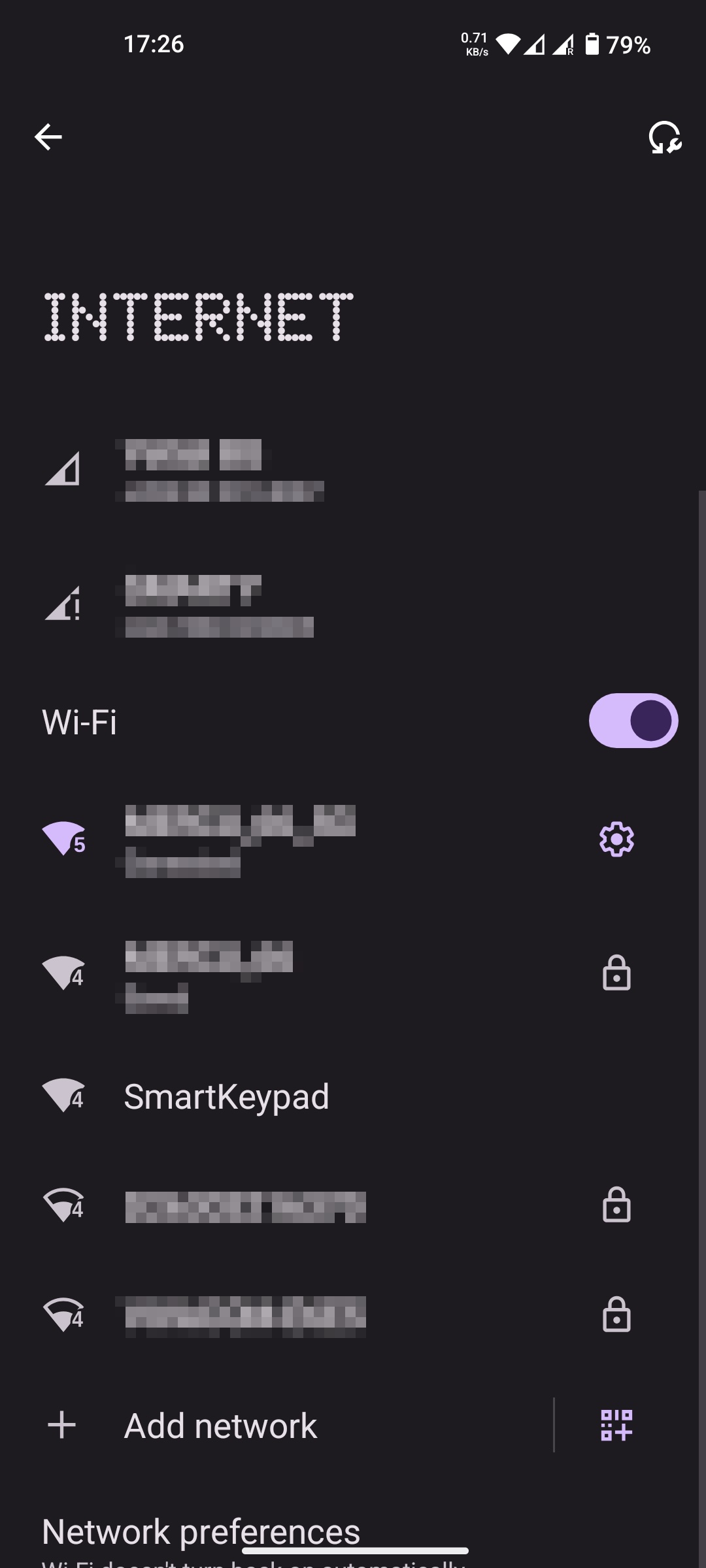
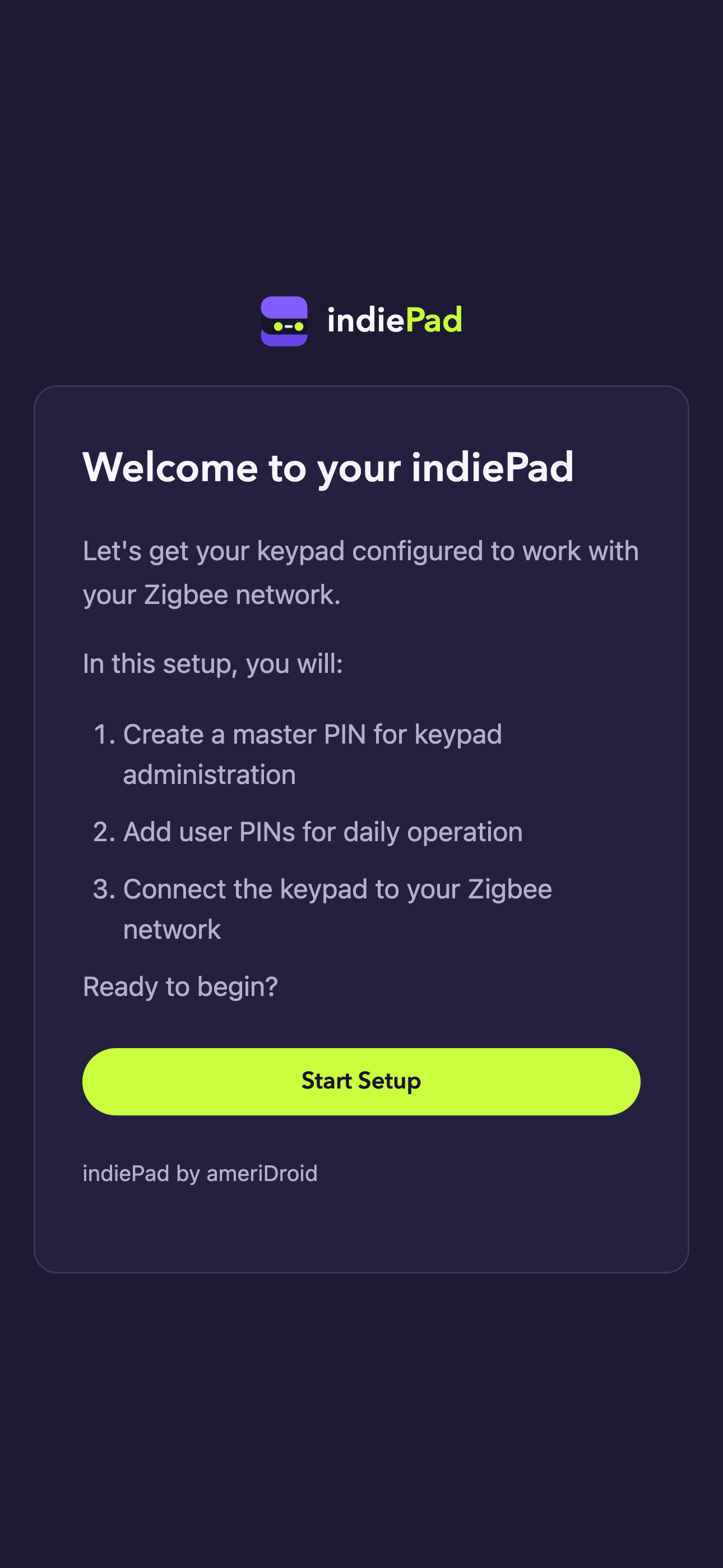
A browser window normally opens automatically (captive portal) and walks you through the setup steps.
If the browser does not open automatically:
- Look for a notification such as "Sign in to Wi-Fi network" and tap it, or
- Open a browser manually and go to http://192.168.4.1/
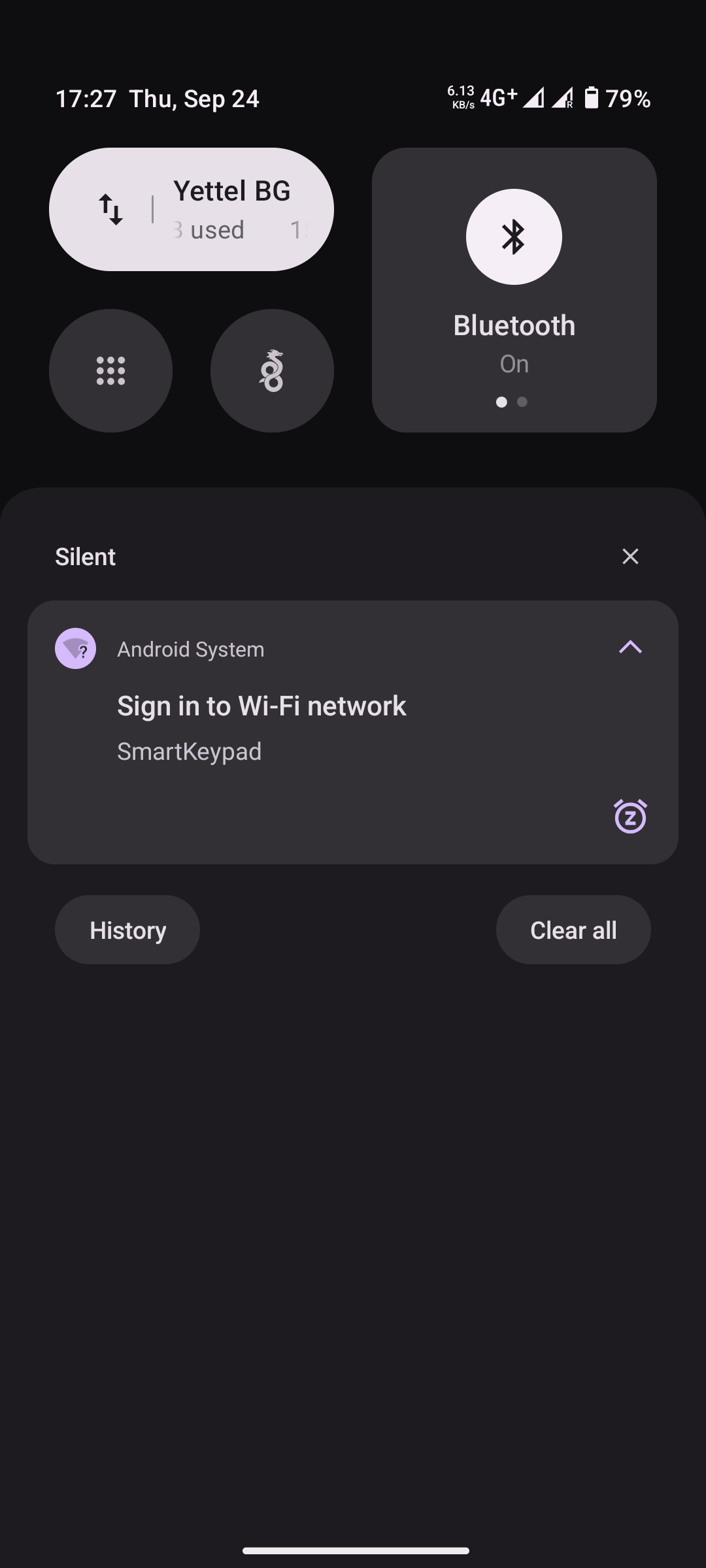
On devices that resolve mDNS (macOS, iOS, Windows with Bonjour) the portal is also reachable at http://indiepad.local/ - most useful once the keypad is on your home Wi-Fi (see Reaching the portal).
¶ The setup wizard
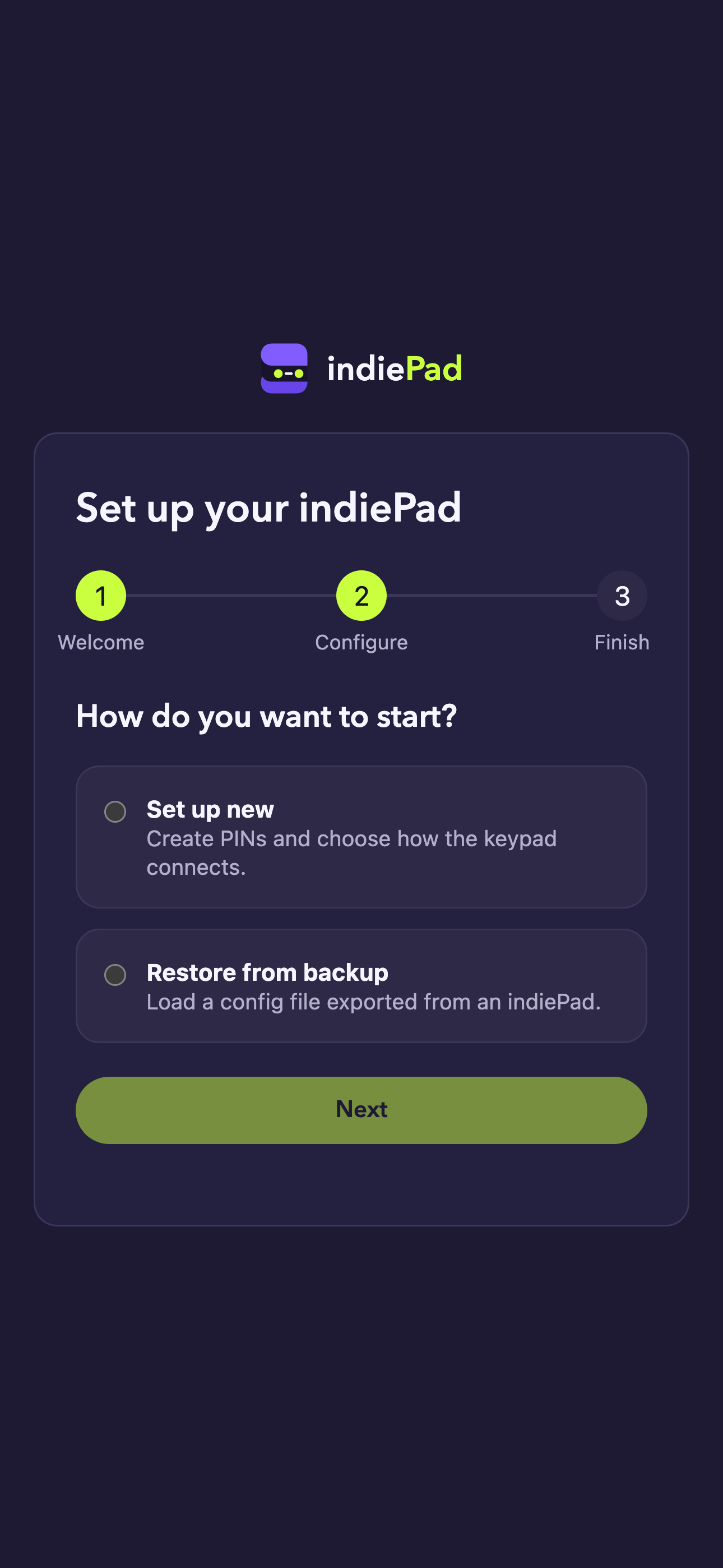
The wizard opens on the Welcome page. Tap Start Setup, then choose how to start:
- Set up new - for a fresh keypad. You add PINs, then pick the mode.
- Restore from backup - load a
.jsonconfig exported from an indiePad. This replaces all PINs, end keys and notes, and skips the rest of the wizard.
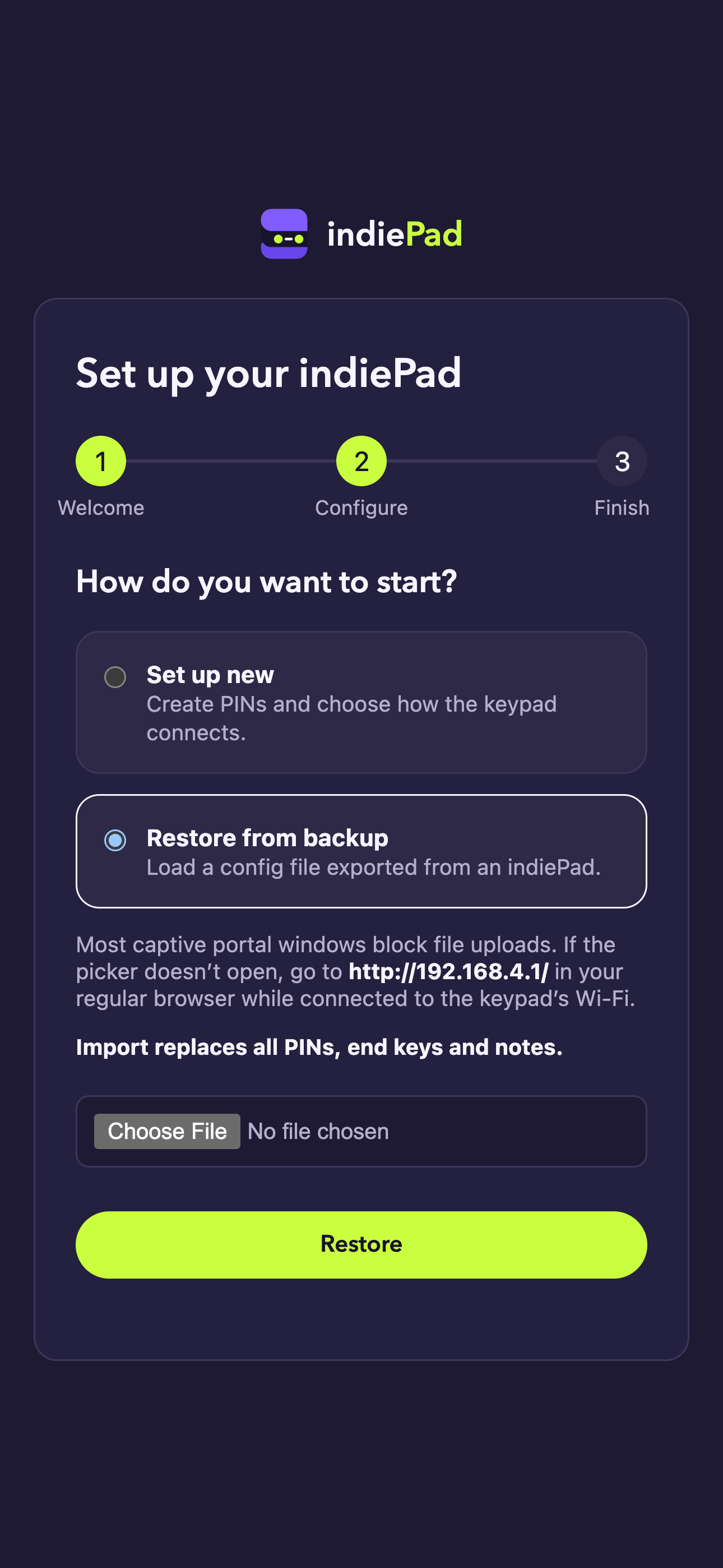
Most captive-portal windows (the pop-up that opens when you join
SmartKeypad) block file uploads. If the file picker doesn't open, stay on the keypad's Wi-Fi and open http://192.168.4.1/ in your normal browser instead.
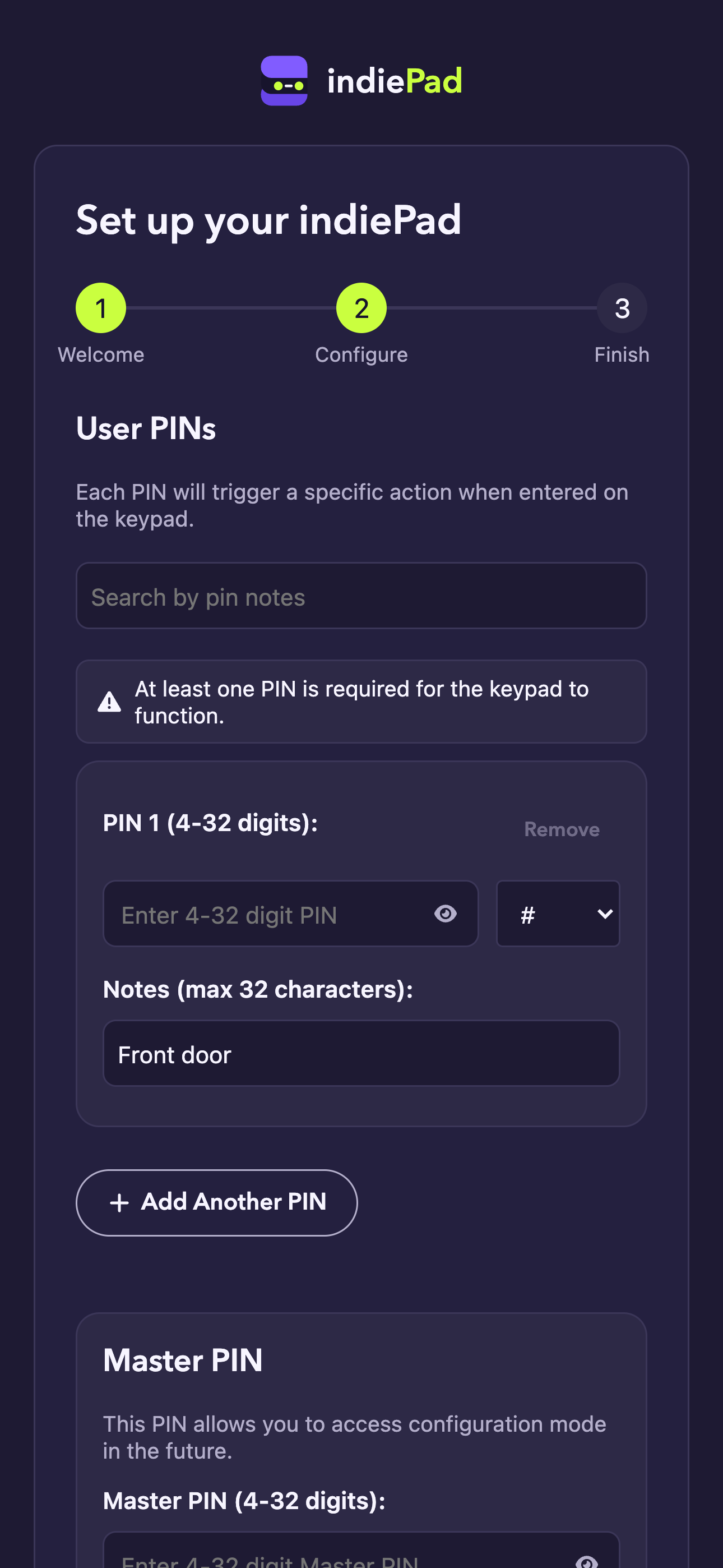
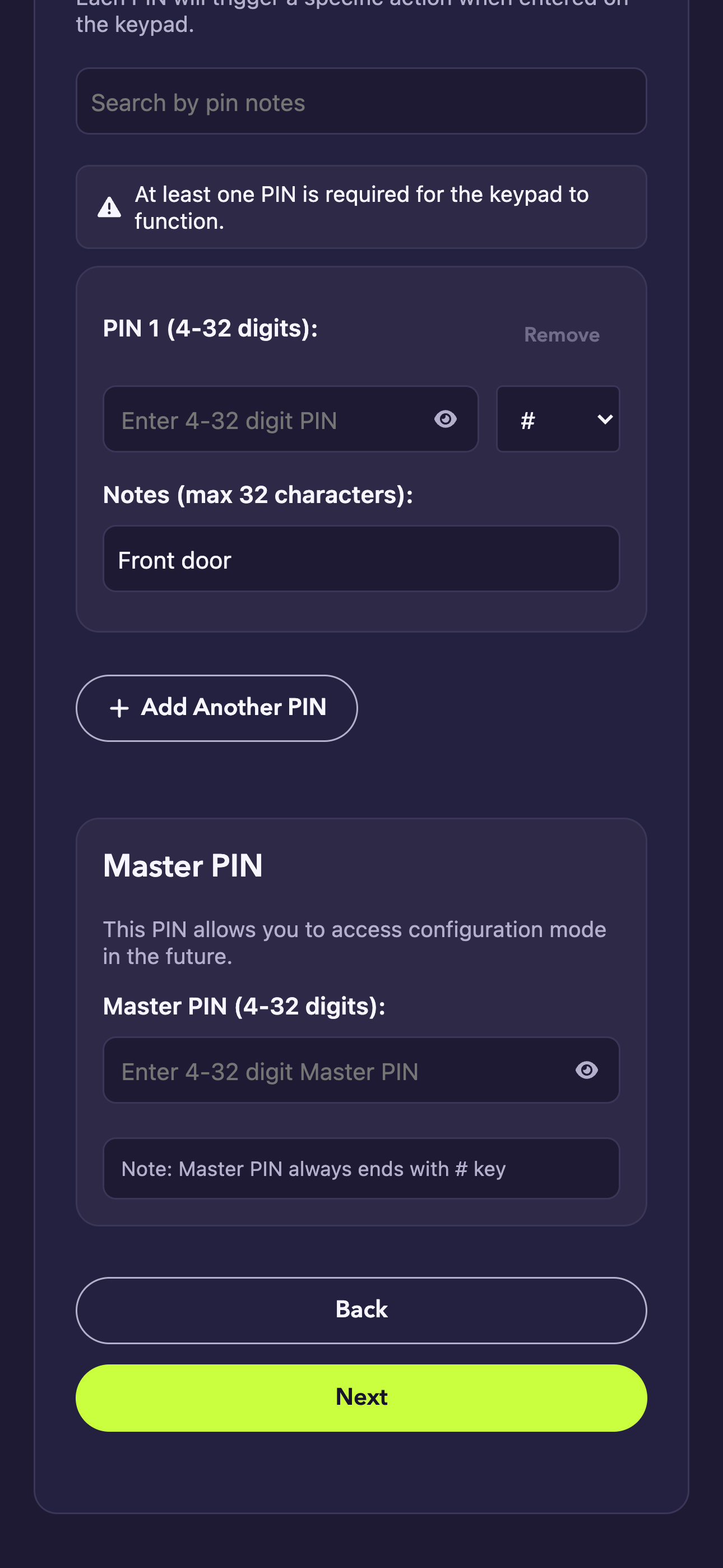
Set up new then walks through:
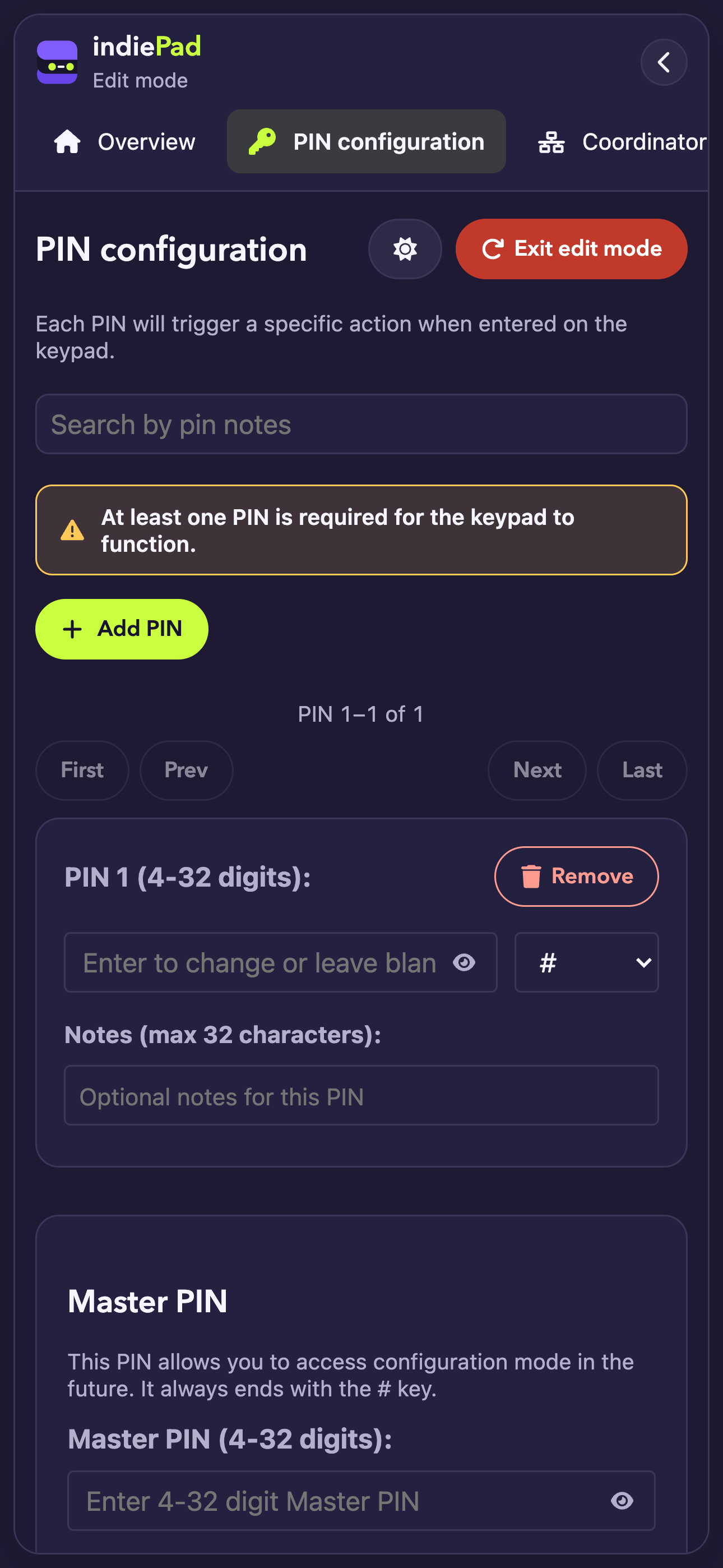
- User PINs - add at least one. Each PIN has an end key (
#,A,B,CorD) and optional notes. - Master PIN - the 4-32 digit code that opens the portal later (it always ends with
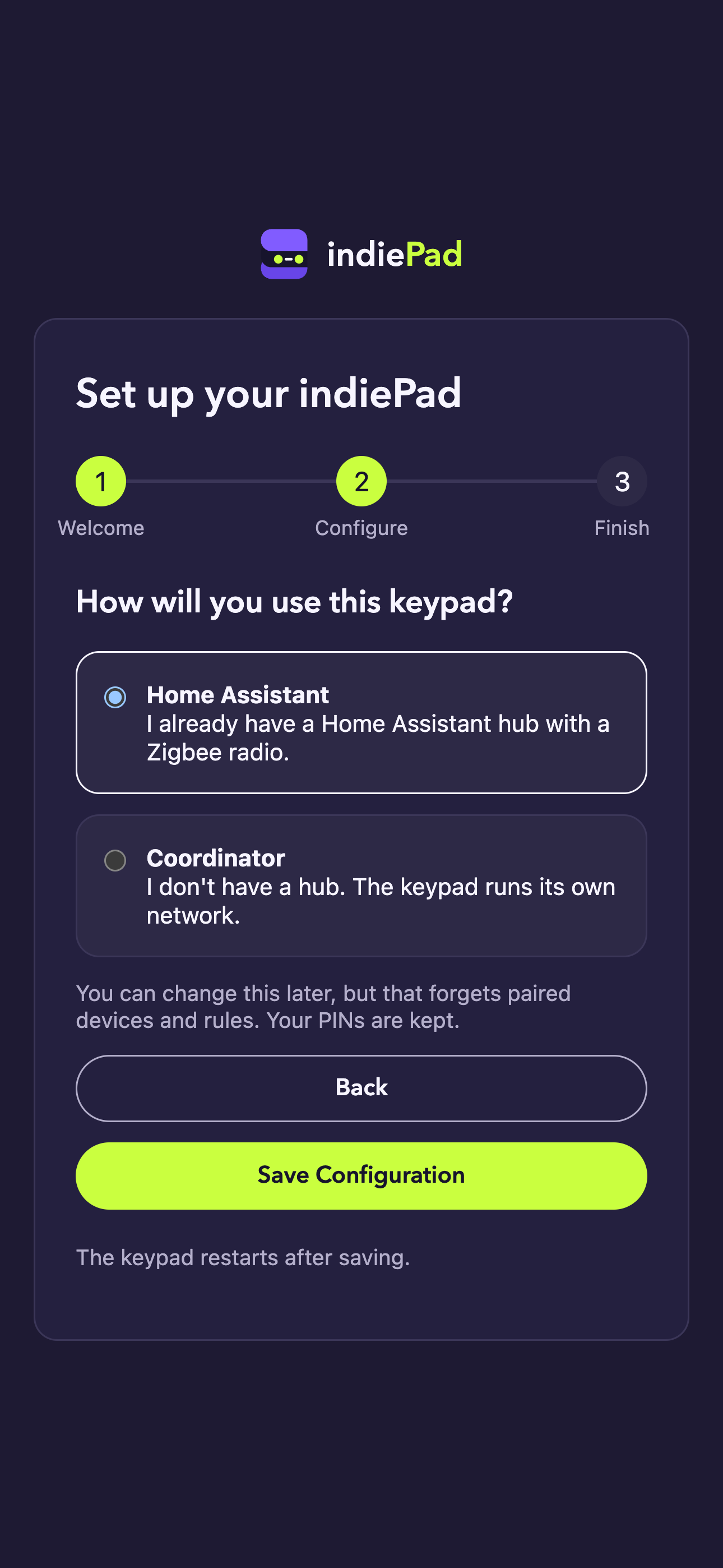
#). - How will you use this keypad? - Home Assistant (join an existing Zigbee network) or Coordinator (the keypad runs its own network). You can change this later, but switching forgets paired devices and automations. Your PINs are kept.
- Save Configuration - in Home Assistant mode the keypad restarts; in coordinator mode the dashboard is ready right away.
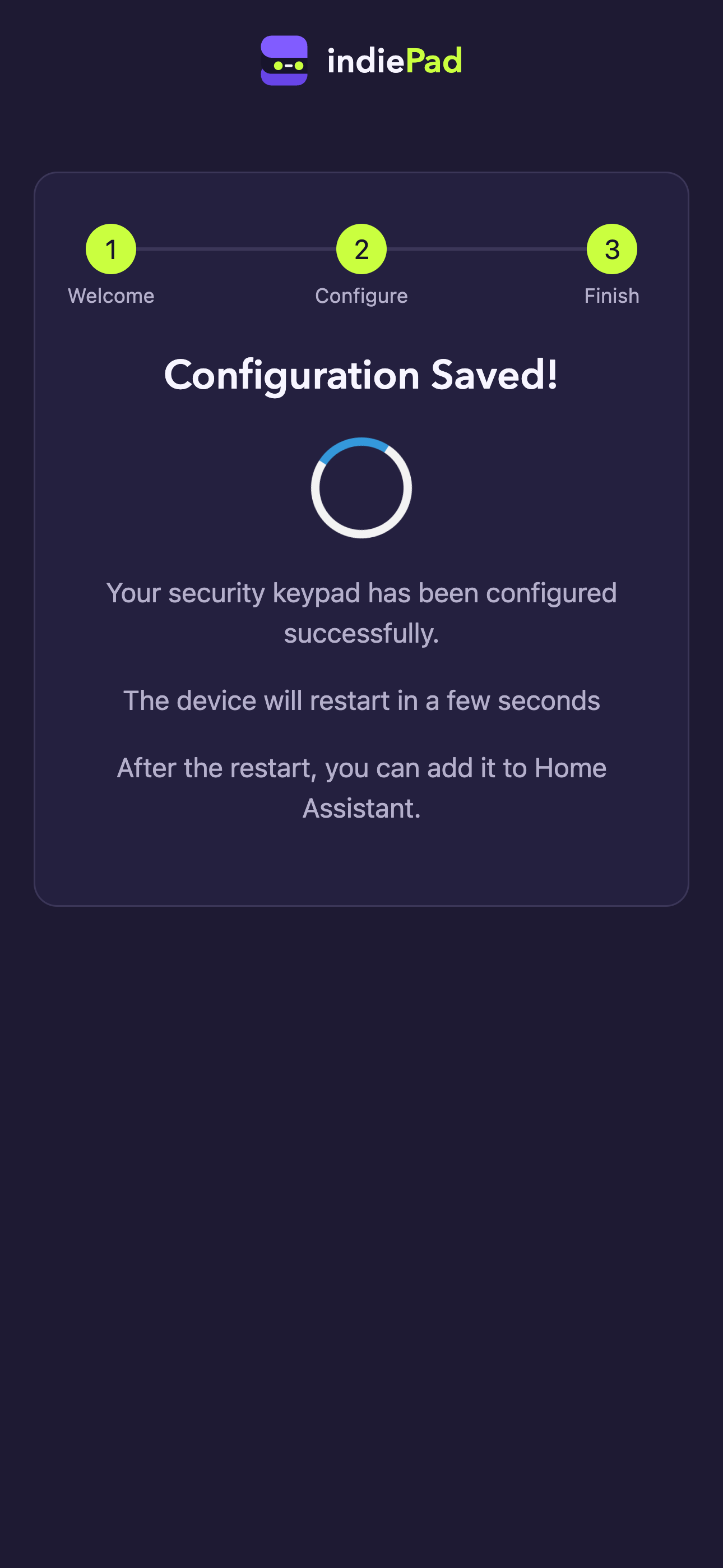
What next? Your keypad is set up. Continue with the part for the mode you chose:
- Home Assistant - Home Assistant mode
- Coordinator - Coordinator mode
The sections below explain PINs and the master PIN. For Wi-Fi, settings and firmware see The portal.
¶ PINs explained
A PIN is a code a person types on the keypad. Each PIN is tied to a switch number (1-1024).
- PINs are 1-32 digits.
- A PIN ends with an end key:
#,A,B,CorD.#is the default. - Each PIN has a switch number - when that PIN is entered, the keypad reports that number over Zigbee (the Active Pin Number endpoint, see Endpoints).
Example: create PIN 1234 with end key #. When someone types 1234# on the keypad, Home Assistant sees "switch 1 entered" and you can build an automation for exactly that event.
PINs are stored as hashes (not plaintext) in the keypad's memory. You can edit them any time in the portal's PIN configuration tab:
¶ Master PIN explained
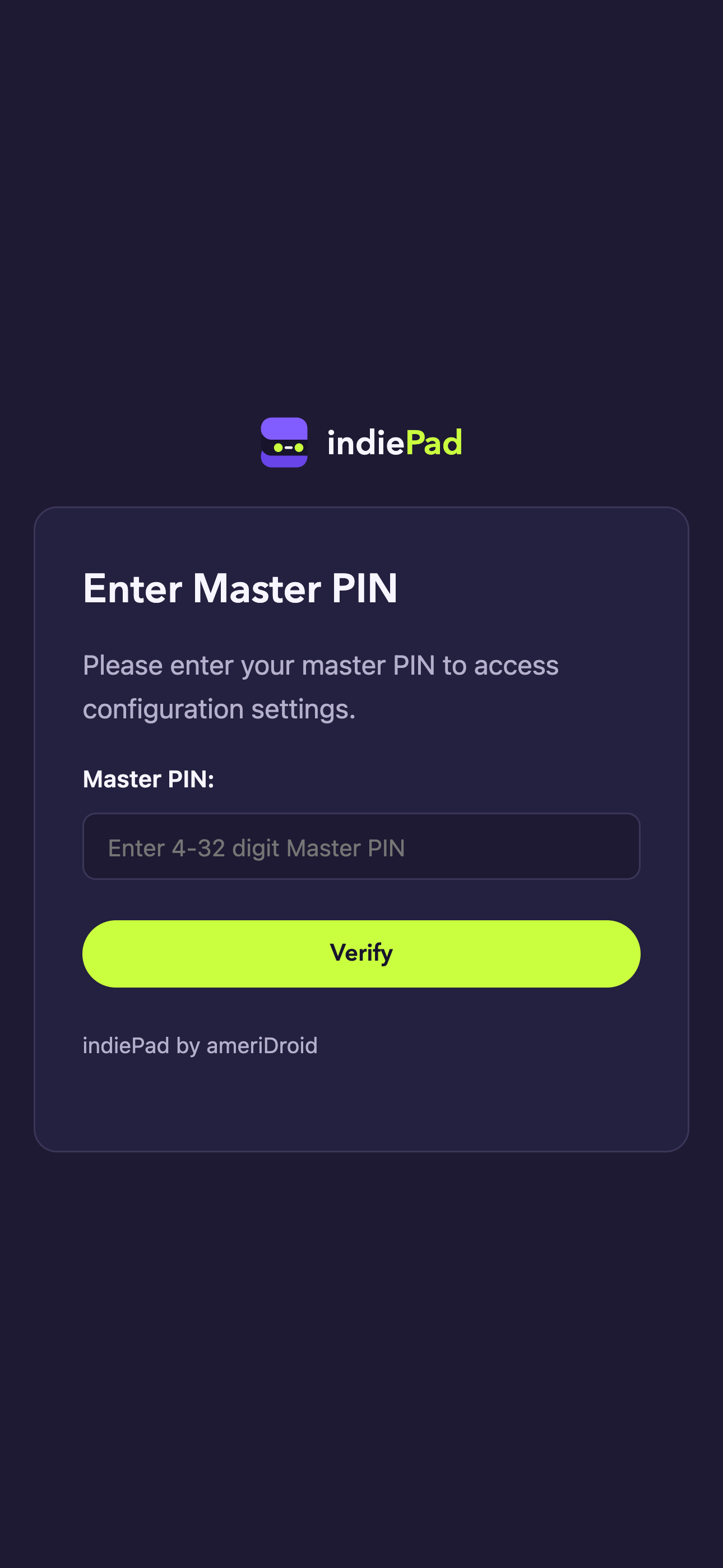
The master PIN is the administrator code, separate from user PINs.
- It is 4-32 digits and always ends with
#when typed on the keypad. - Entering the master PIN on the keypad (
<master pin>#) opens the configuration portal (edit mode). - In the portal it is also the login password for the dashboard.
Use the master PIN to change PINs, Wi-Fi settings, sleep time, or switch Zigbee modes. Treat it like a safe key - anyone who knows it can change the keypad's configuration, including every user PIN. Make it at least as long as your longest user PIN; a long user PIN is only as safe as the master PIN that can change it.
¶ Next
- Home Assistant mode - add the keypad to ZHA or Zigbee2MQTT
- Coordinator mode - pair devices to the keypad and automate them
- The portal - Wi-Fi, settings and firmware